
Summary
Lead Engage is Sierra’s AI-powered assistant that nurtures leads through two-way text conversations for up to 12 months. This guide explains what Lead Engage is, who can use it, how to set it up, and where to track results.
Table of Contents
Why This Feature Matters
-
Automated follow-up: Never lose leads to slow response times.
-
Lead qualification: Engage only with people ready to talk.
-
Time-saving: Agents focus on conversations, not repetitive outreach.
-
Centralized tracking: All activity is logged directly in Sierra’s CRM.
Step-by-Step Instructions
1. Check Permissions
-
Primary Managers can enable or disable agent access to Lead Engage.
-
Agents can opt in leads if the Primary Manager has granted permission.
2. Enrolling Leads into Lead Engage
You can opt in leads three ways:
-
Lead Routing Rules
-
In the top navigation bar, click Leads, then select Lead Routing.
-
Choose whether you want to edit an existing rule or create a new rule.
-
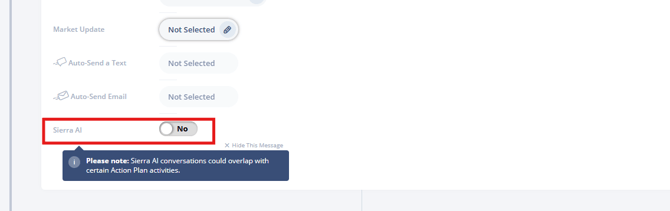
Scroll to the bottom of the rule settings and toggle Sierra AI to On.
-
-
Lead Detail Page Widget
-
Open the lead’s Detail Page.
-
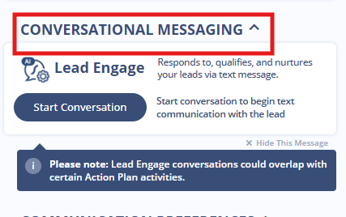
On the left-hand side, scroll down and select the Conversational Messaging widget.
-
Click Start Conversation to manually opt the lead into AI engagement.
-
-
Automations
-
In the top-right corner of your account, click the Gear Icon and select Automations.
-
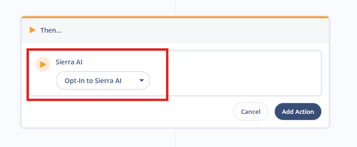
When building a new automation, go to the final step. Under Actions, choose Sierra AI from the dropdown menu.
-
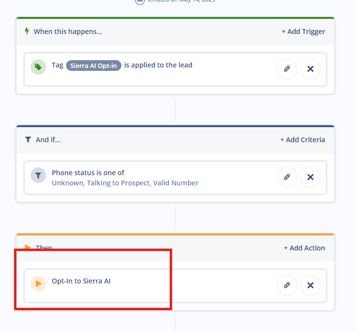
Add the action Opt Lead into Lead Engage to your workflow
-
3. Notifications
Agents and managers are notified when:
-
A lead replies and requires follow-up.
-
Lead Engage cannot send (e.g., landline detected).
-
A lead opts out of texts.
4. Where to View Lead Engage Activity
-
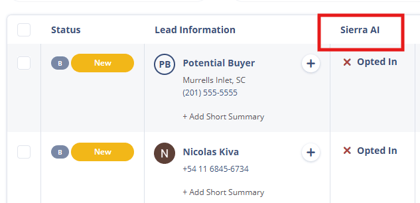
Lead Dashboard – “Sierra AI” column shows enrolled leads.
-
Filters & Smart Filters – Use conditions like Opted In or Needs Follow-Up.
-
Lead Detail Page – Activity history + conversation window log every interaction.
5. Tracking Performance with the Lead Engage Stats Report
⚠️ Access is limited to Primary Managers and Managers only. Agents cannot view this report. If you subscribe to Lead Engage but have not yet enabled it, the report will display placeholder data rather than real metrics.
The Lead Engage Stats Report gives managers a high-level view of how leads are moving through the AI engagement funnel. It is separate from the lead-level activity visible on the Lead Dashboard. This report shows account-wide performance over time.
Where to find it
Go to Reporting in the top navigation of your CAA, then select Sierra Manager Reporting from the dropdown. Open the Lead Engage Stats tab.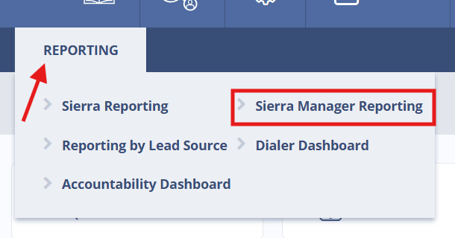
Filtering by month
By default, the report shows all available data for your account. To filter by a specific month, use the Month dropdown at the top of the report. To clear the filter and return to the full view, open the dropdown and select Clear all selections (the gray option above the first month listed).
The 5 funnel metrics
The report tracks five stages. Each metric is a subset of the one above it, together they form the engagement funnel.
| Metric | What it counts |
|---|---|
| Total Lead Engage Leads | All leads enrolled in Lead Engage for the period. This is the 100% baseline. |
| Responded | Leads that replied via text to the AI. Any reply counts, including opt-outs. |
| Interested | Leads that replied and continued the conversation with genuine interest. Excludes STOP and opt-out responses. |
| Agent Follow-Up | Leads that reached a stage requiring a human response. These leads need action from your team. |
| Appointments Set | Leads for whom the AI successfully scheduled an appointment with an agent. This is the highest-value outcome. |
Reading the percentages
Each percentage shown in the report represents the conversion rate at that stage relative to the stage above it — not relative to the total enrolled leads.
For example, if 1,220 leads are enrolled and 282 respond, the Responded % is 23% (282 ÷ 1,220). If 150 of those 282 continue with genuine interest, the Interested % is 53% (150 ÷ 282) — not 12% of total enrolled.
Exporting report data
There is no native export available. If you need a data export, contact Support.
Setup Checklist
✅ Confirm permissions (Primary Manager or Agent access)
✅ Decide opt-in method (routing rules, widget, or automation)
✅ Test with one lead to confirm enrollment works
✅ Review dashboard filters for monitoring
✅ Verify notifications are being received
Best Practices
-
Enable Lead Engage through Lead Routing Rules so new leads receive an immediate response when they enter your CRM. Speed to first contact plays a critical role in engagement and conversion.
-
Prioritize opting in new leads first. Clients typically see significantly higher response rates when Lead Engage is applied to fresh, newly generated leads versus older or colder contacts.
-
Use Lead Engage as a first-touch and qualification layer, not a replacement for human follow-up. Once a lead responds, transition the conversation to a team member as quickly as possible.
-
Monitor conversations regularly, especially during the first few weeks of usage, to ensure responses align with your business goals and communication style.
-
Combine Lead Engage with strong lead management workflows, such as tasks, alerts, and follow-up plans, to maintain momentum after the initial engagement.
- Audit lead records for landline numbers before enabling Lead Engage, especially for large or older databases
- Set up an automation to pause Lead Engage once a lead replies, to prevent redundant outreach and reduce segment consumption at handoff
- Understand what to expect from Lead Engage over time. See Understanding Lead Engage Performance, Handoffs, and Long-Term Results for guidance on team roles, the handoff moment, and why results build gradually.
Troubleshooting Common Issues
| Issue | Likely Cause | Fix |
|---|---|---|
| Lead not receiving messages | Landline number on file | Update lead with mobile number |
| Lead reassigned to another agent | Lead Engage paused | Re-enroll under new agent |
| Opt-in not working | Agent lacks permission | Confirm manager settings |
FAQs
-
Does Lead Engage replace my agents?
No, Sierra AI’s role is to engage and qualify leads. Once a lead responds, your agents take over. -
How much does Lead Engage cost?
$199/month with 12-month commitment (Dialer overages excluded). -
Can I customize the AI’s responses?
No, Sierra AI uses tailored scripts based on your account settings and lead context. -
Can IDX-only customers use it?
No, Lead Engage is not available for IDX-only accounts. -
How long does it nurture leads?
Up to 12 months from initial opt-in. -
What if I don’t want AI to contact certain leads?
You can exclude them in routing rules or simply avoid toggling Sierra AI for that lead source -
Can Lead Engage have conversations in Spanish?
Lead Engage can engage in Spanish conversations and will respond if a lead texts in Spanish or asks for Spanish support. However, this capability isn’t as comprehensive as it is in English and may occasionally produce imperfect responses. - Why am I being charged for messages that weren't delivered?
Twilio bills at the point of send, not delivery. Undelivered messages still count against your monthly allotment. A common cause is leads with landline numbers on file, since texts to landlines will fail but still incur a charge. Before enabling Lead Engage, we recommend auditing your lead records to ensure contacts have valid mobile numbers. This is especially important for large or older databases where landline entries are more likely. - What is a segment, and how does it affect my bill?
Lead Engage bills by segment, not by message. A single text message can use 2–7 segments depending on its length and character encoding. The first message Lead Engage sends is 6 segments by design, it includes required compliance language that cannot be removed. Across a full conversation, Lead Engage averages around 3 segments per message. If you're estimating monthly usage, plan around segment volume rather than message count. - I'm already texting leads manually. Will that affect my Lead Engage usage or bill?
Yes, Lead Engage can run at the same time as Action Plans and manual texting from agents. That means the same lead may be receiving texts from three separate sources simultaneously. Clients who are already active texters outside of Lead Engage carry the highest overage risk. Before going live, confirm whether other text sources are running against the same lead pool. - Can I see overall Lead Engage performance across my account?
Yes. Go to Reporting > Sierra Manager Reporting > Lead Engage Stats tab. The report shows a five-stage funnel — enrolled leads, responses, interested leads, agent follow-ups, and appointments set — and lets you filter by month. Access is limited to Primary Managers and Managers.