
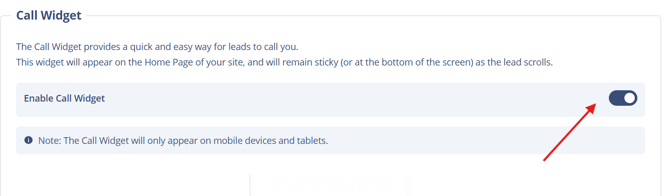
The Call Widget puts a persistent, one-tap call button on your mobile and tablet site, so leads can reach you the moment they're interested instead of hunting for a phone number. This guide covers how to turn it on, how it routes calls, and how to fix the most common setup issues.
Table of Contents
- Why This Feature Matters
- Before You Begin
- Step-by-Step Instructions
- Best Practices
- Troubleshooting Common Issues
- FAQs
Why This Feature Matters
When a lead can't easily find a way to call you, that lead often just moves on to the next listing site. The Call Widget solves this by keeping a direct call option visible on-screen the entire time a visitor browses your site on a mobile device or tablet. Because the button stays in place rather than requiring a scroll back to a header or footer, it lowers the friction between interest and contact, which supports higher response rates and more conversions from mobile traffic.

Before You Begin
- You'll need access to your Site Layout Settings. If you're unsure how to navigate there or what your site tier supports, see Site Layout Settings for Pro and Ace Sites before starting the steps below.
- Decide which phone number should receive Call Widget calls before you begin. This is the Header Phone number, set in the Footer section of Site Layout Settings, not a separate number configured on the widget itself. If you route calls through Personal Dialer Numbers, decide now whether that number or a different one belongs here.
- The Call Widget displays on mobile and tablet devices only. It will not appear on desktop views of your site.
Step-by-Step Instructions
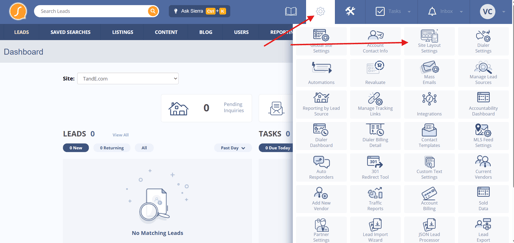
- Log in to your Sierra dashboard and click the Gear Icon.
- Select Site Layout Settings.
- In the left-hand menu, click Footer.
- Scroll to the Call Widget frame and enable it.
- Confirm the Header Phone number in the Footer section is the number you want the widget to dial. This is the number all Call Widget taps will route to.
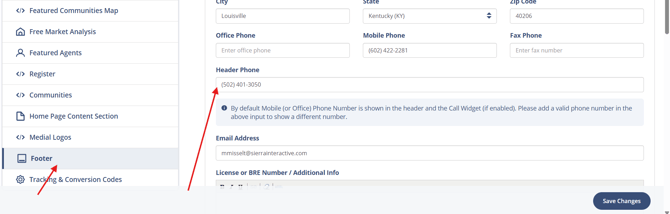
Once enabled, the Call Widget appears automatically on mobile and tablet views of your site. When a lead taps it, the call goes straight to your Header Phone number, and answering it works the same as any other inbound call.
Best Practices
- Test the Call Widget yourself from a mobile device periodically to confirm it's live and dialing the correct number. A quick monthly check prevents missed leads going unnoticed for weeks.
- Use a mobile-friendly number for your Header Phone, ideally one you or your team can answer promptly during business hours, since the whole point of the widget is immediate contact. If you manage multiple numbers across your team, Manage and Optimize Personal Dialer Numbers for Lead Capture covers how to assign and route them.
- Treat missed calls from the widget as high-priority follow-ups. A lead who tapped to call was ready to talk right then, so a fast callback matters more here than with other lead sources. Lead Quick-Call: Call Your Leads Faster from the Lead Detail Page is the fastest way to get that callback out.
Troubleshooting Common Issues
-
The Call Widget isn't showing up on my site.
Confirm the widget is enabled in Site Layout Settings > Footer, and check your site from an actual mobile or tablet device or browser view, since the widget does not display on desktop. If you're not sure where this setting lives, Site Layout Settings for Pro and Ace Sites walks through navigation. -
Calls aren't reaching the right number.
Verify the Header Phone number in the Footer section of Site Layout Settings matches the number you intend the Call Widget to dial. The widget always uses this number; it has no separate number field. If that number is a Personal Dialer Number, double-check its routing in Manage and Optimize Personal Dialer Numbers for Lead Capture.
FAQs
-
Can I customize the appearance of the Call Widget?
The Call Widget's design is standard and not customizable. You can control which phone number it dials through your Header Phone setting. -
Will the Call Widget appear on desktop?
No. It's designed to display only on mobile and tablet devices, where one-tap calling is most useful. For the fuller mobile experience beyond calling, see the Sierra Interactive Mobile App Guide. -
What happens when a lead taps the Call Widget?
The call routes to your Header Phone number, and you answer it like any other inbound call. -
Can I use a Personal Dialer Number as my Header Phone?
This isn't confirmed in current documentation. If you're using Personal Dialer Numbers and want the Call Widget to route there, confirm compatibility with support before relying on it.