
Table of Contents
Why This Feature Matters
Your email signature is automatically appended to outgoing emails sent through Sierra — including manually composed emails, Action Plan emails, and E-Alerts. Setting it up once means every email you send carries consistent contact information and branding without any extra effort.
- Every email, every time. Your signature appears across all email types sent from Sierra, no manual insertion needed.
- Builds credibility with leads. A complete signature with your name, title, phone, and website reinforces professionalism at every touchpoint.
- Saves setup time. Configure it once in your profile and it carries through automatically.
Step-by-Step Instructions
- Click your profile icon (initials or photo) in the upper-right corner.
- Select Edit Profile from the dropdown menu.

- Go to the Summary tab.
- Scroll down to the Email Signature section.

- Type your signature content directly into the text field. A standard signature typically includes:
- Full name and title
- Phone number
- Website URL
- Any license numbers required in your market
- To include an image (such as a headshot or logo), click the image icon in the signature editor toolbar and upload your image file.
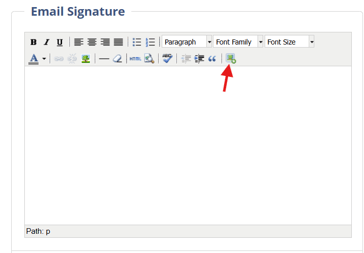
- Once entered, click Save to ensure your signature is stored.
Best Practices
- Keep it concise. Name, title, phone, and website cover the essentials. Long signatures with multiple images or excessive formatting can render poorly in some email clients.
- Use plain text or simple formatting. Avoid tables or complex HTML layouts; they can break across different email clients and devices.
- Include your license number if required. Many states require agent license numbers in email correspondence so check your local compliance requirements.
- Test before relying on it. Send yourself a test email after saving to confirm the signature renders as expected.
- Update it when your contact info changes. A signature with a wrong phone number or outdated website is worse than none at all.
Troubleshooting Common Issues
- Signature isn't appearing in emails.
Confirm you clicked Save after entering your signature. Then send a test email to yourself to verify it's active. - Signature image isn't displaying for recipients.
Some email clients block externally hosted images by default. Use a small, web-hosted image file and keep file size low. Plain text signatures are the most reliable fallback. - Signature formatting looks broken or inconsistent.
Avoid complex HTML, tables, or multiple font styles. Stick to basic formatting — bold, links, and line breaks — for the most consistent rendering across email clients.
FAQs
- Does my signature appear in all email types, or just manual emails?
Your signature is included in all outgoing emails sent through Sierra, including manually composed emails, Action Plan emails, and E-Alerts. - Can I use HTML in my signature?
Yes, basic HTML is supported. Keep it simple — avoid tables and complex inline styles, which can render unpredictably across email clients. - How do I add an image to my signature?
Use the image icon in the signature editor toolbar to upload an image directly into the signature field. This is separate from your profile photo, which is set elsewhere in your profile settings. - Can I have a different signature than other agents on my team?
Yes. Each agent configures their own signature in their individual profile. Signatures are not shared or set at the account level.