
⚠️ Important: Not all MLS Boards allow you to advertise pocket listings or have specific rules about how they can be marketed. Please use this feature at your own risk and consult with your Broker, MLS Board, or Attorney to ensure you are compliant.
Table of Contents
- Why This Feature Matters
- How to Add a Manual (Pocket) Listing
- How to Include a Manual Listing in a Saved Search
- How to Display a Manual Listing on a Content Page
- How to Use Manual Listings in Reverse Prospecting for Buyer Matches
- Troubleshooting Common Issues
- FAQs
Why This Feature Matters
The Manual Listings feature allows you to add listings that are not coming from your MLS feed such as pocket listings, coming-soon listings, or internal inventory and display them on your website.
Once added, manual listings can be:
- Included in saved searches
- Displayed on content pages
- Shown in site search results when configured correctly
This makes Manual Listings ideal for showcasing off-market or pre-MLS inventory without needing an MLS number or past sold listings when MLS or IDX rules limit the display of sold data on your site.
How to Add a Manual (Pocket) Listing
- Log in to CAA
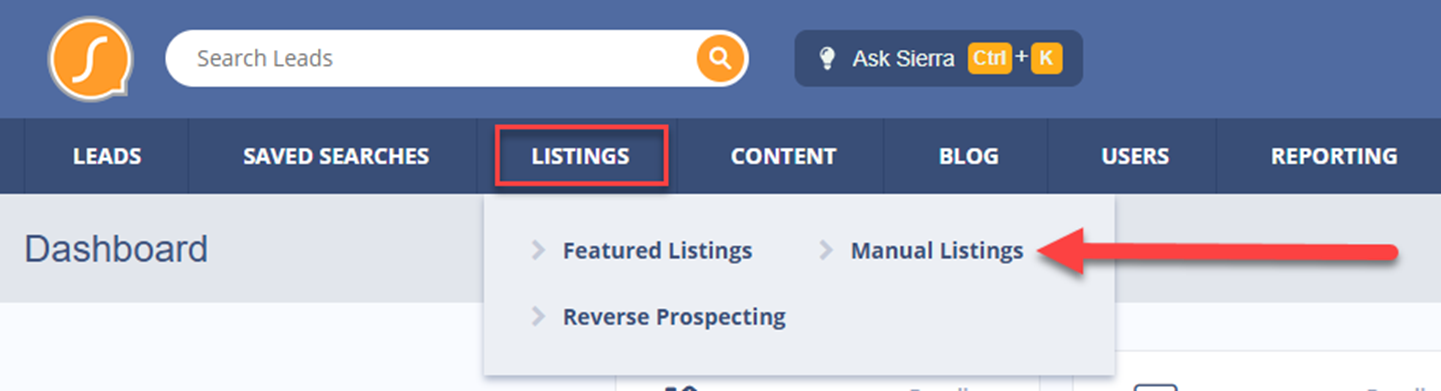
- Navigate to the Listings tab → Manual Listings
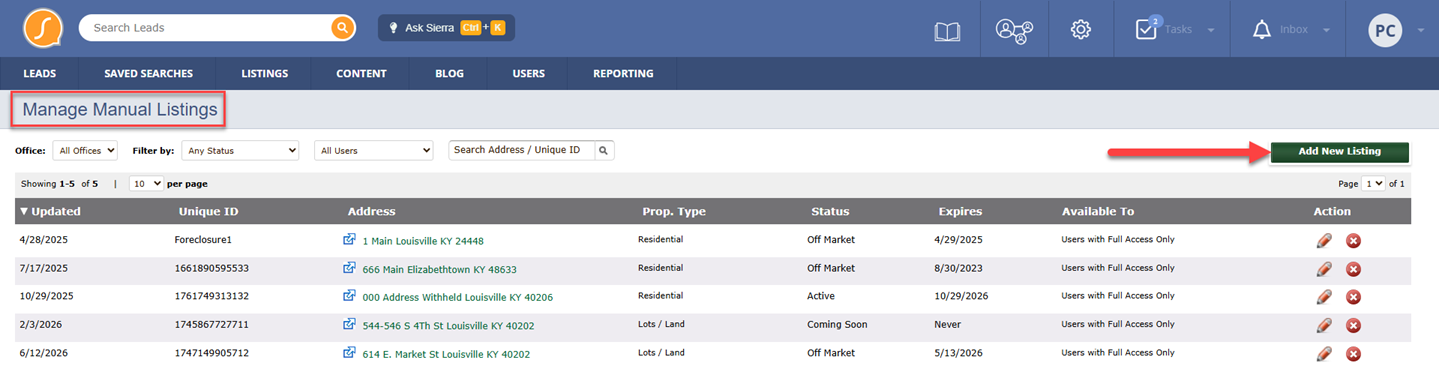
- Click Add New Listing
- Fill out the listing form with the property details
- Click Save
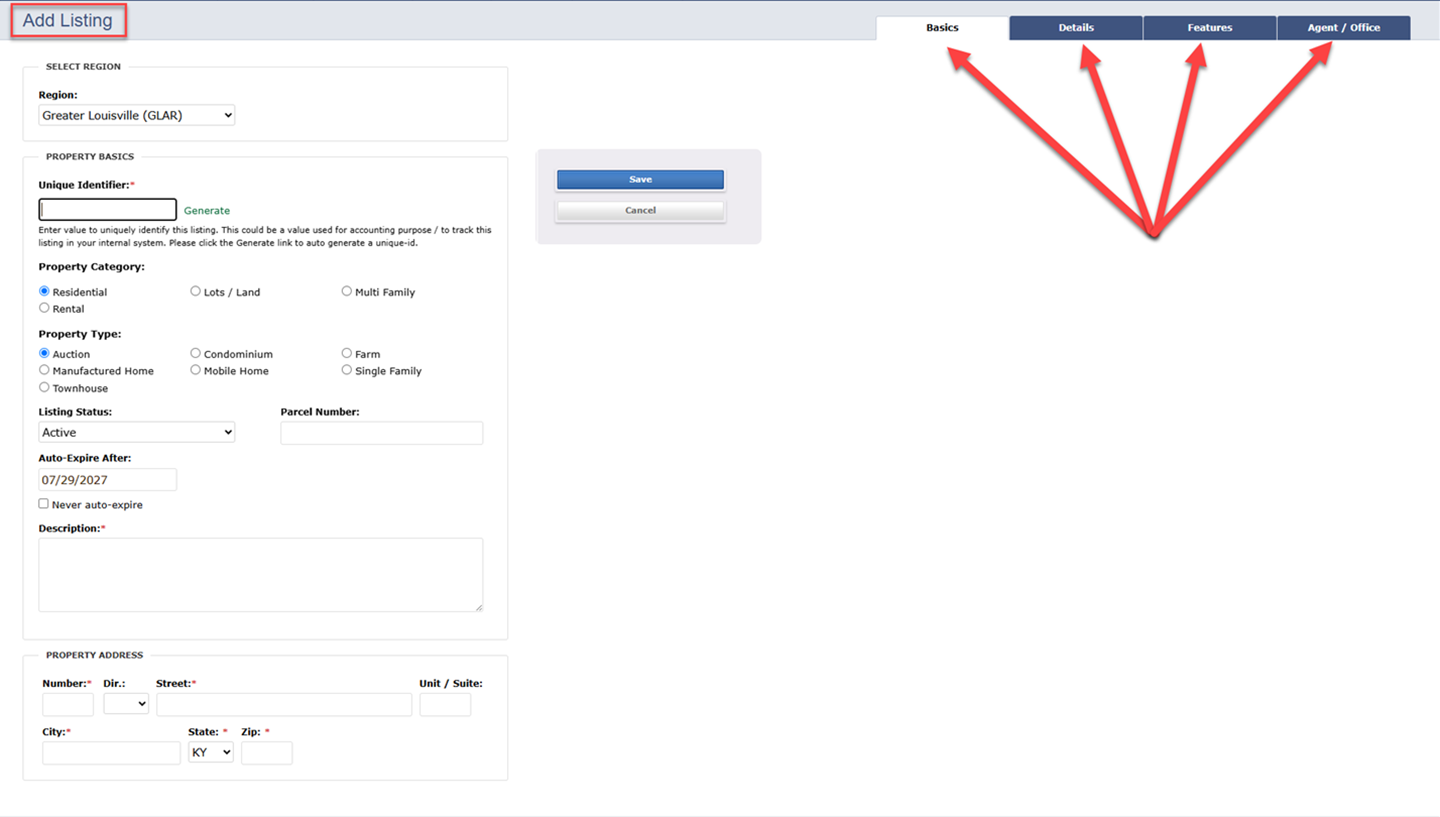
Once saved, Sierra will generate a unique identifier for the listing. This identifier functions like an MLS number and can be used to include the listing in searches and content.
If you set a manual listing to the listing status of “Off-Market,” you will not be able to see the listing details page for that listing on the live site. Be sure to consider this when selecting a listing status.
How to Include a Manual Listing in a Saved Search
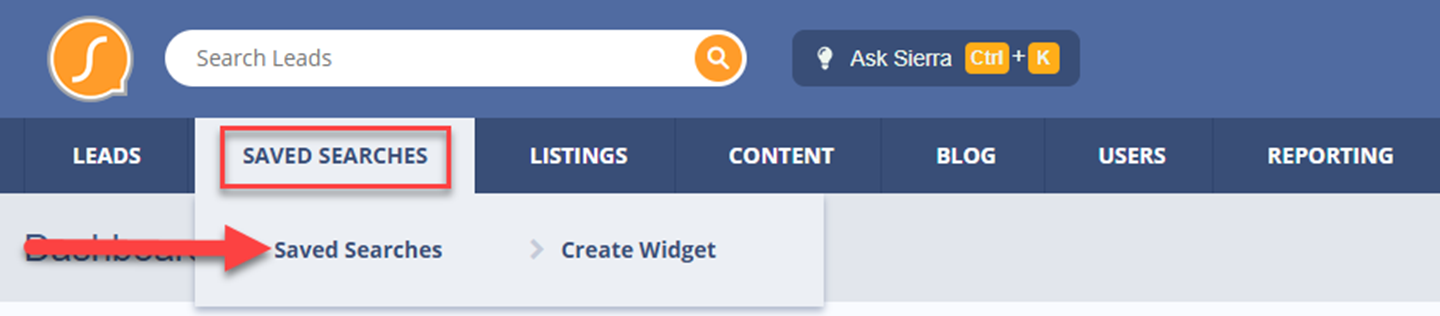
- Navigate to Saved Searches tab → Saved Searches
- Click + New Saved Search
- Configure your search criteria as desired
- Under Listing Type, select:
- MLS or Manually Uploaded or Manually Uploaded
- Save the search
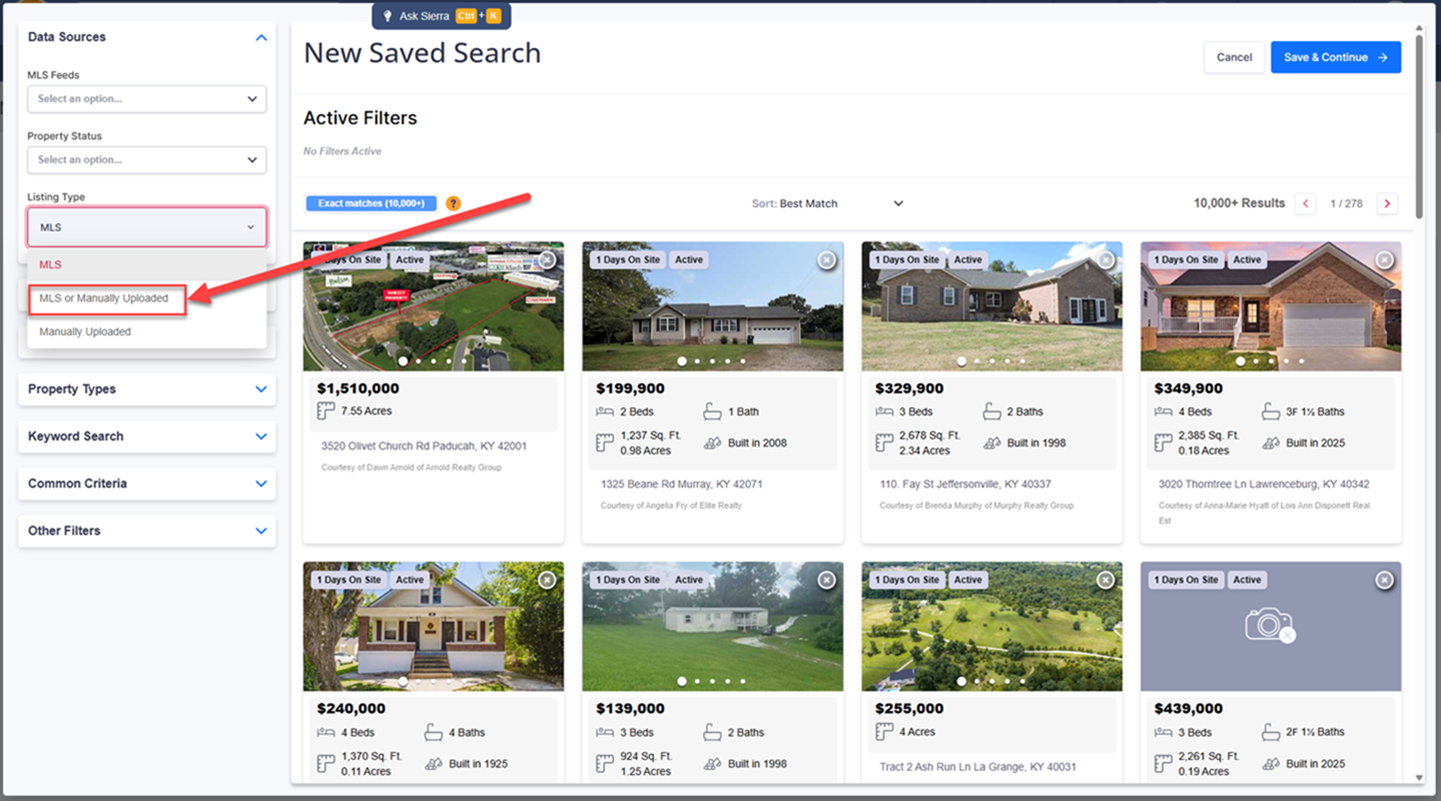
This allows your pocket listing to be grouped and displayed alongside other listings.
“Pocket Listing” is not a listing status in Sierra, so you must select the appropriate listing type (Manually Uploaded or MLS or Manually Uploaded) for the listings to appear.
How to Display a Manual Listing on a Content Page
- Navigate to Content → Content Pages
- Create or edit a page and fill out the required fields
- Scroll to the bottom and select Add New Page Component → Listings from Saved Search
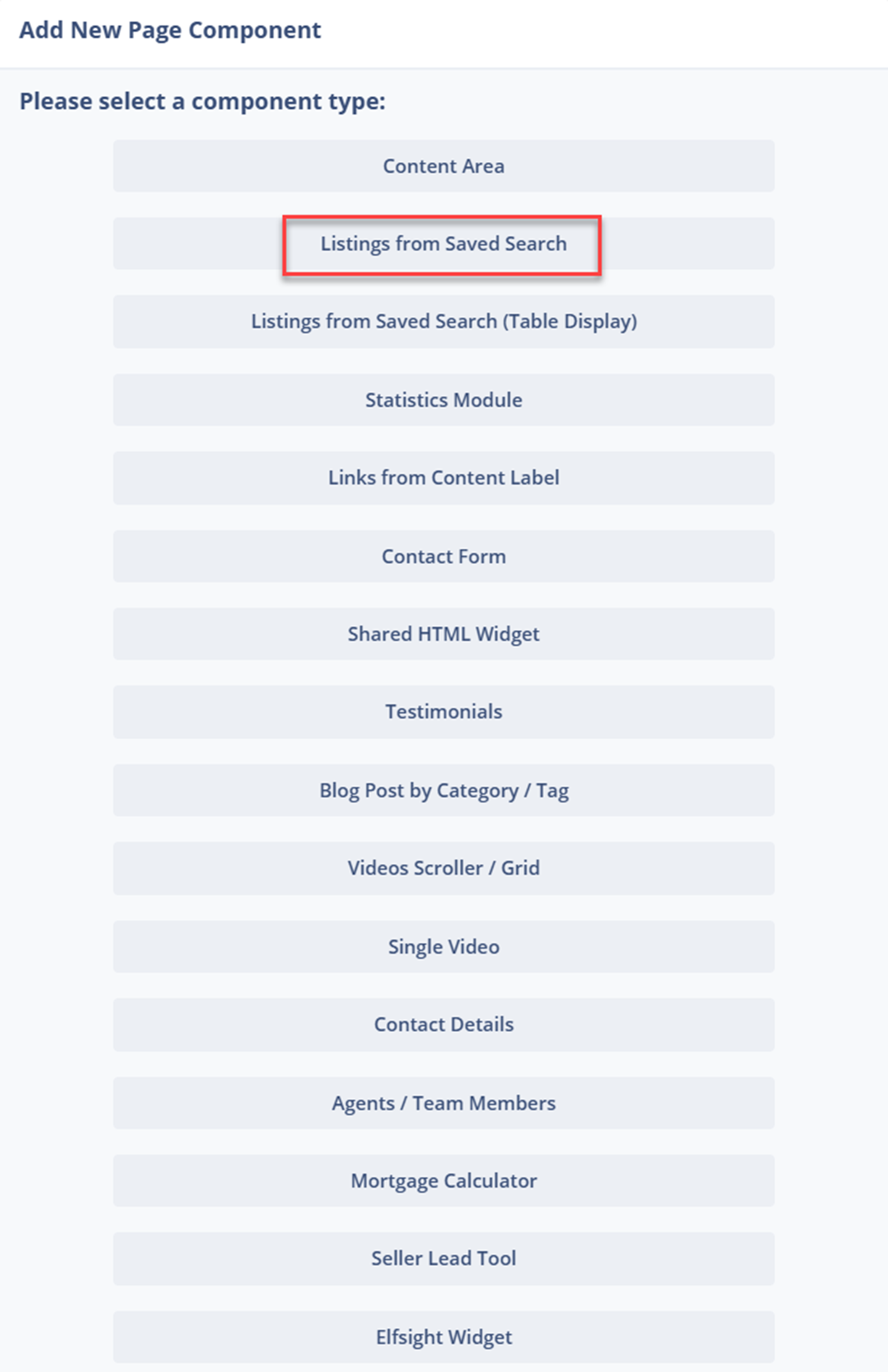
- Select the saved search that includes your manual listing
How to Use Manual Listings in Reverse Prospecting for Buyer Matches
- Navigate to Listings → Reverse Prospecting
- Click Potential Listings
- Click the Active drop-down and change to the preferred status type
- Select Buyer Matches for your manually added listing

Read more about Reverse Prospecting HERE.
Troubleshooting Common Issues
My pocket listing isn’t showing on the site
- Confirm the listing is saved and published under Manual Listings
- Verify the unique identifier is entered correctly in the saved search
- Ensure the content page component is pointing to the correct saved search
- Check that the listing type includes Manually Uploaded
The listing shows in CAA but not on the live site
- Clear site cache and refresh
- Confirm the content page is published and not on hold
- Make sure the saved search is not restricted by additional filters (price, status, etc.)
- ⚠️ Check the listing status: If set to Off-Market, the listing detail page will not be visible on the live site
FAQs
- Can I use this for Coming Soon or office-only listings?
Yes, as long as your MLS and brokerage rules allow it. - Will this syndicate to portals like Zillow or Realtor.com?
No. Manual listings only appear on your Sierra website. - Does this replace MLS listings?
No, it supplements your MLS feed and should only be used for listings not available through the MLS. - Can I use Manual Listings for past sold properties?
Yes, many clients use Manual Listings for past sold properties when their MLS or IDX does not allow sold listings to be displayed on their website. Just be sure you are compliant with your MLS and brokerage rules before publishing.