
Overview
The Ylopo integration uses the Sierra Interactive API to sync lead data between the two platforms. Once connected, leads generated or imported in Ylopo will appear in your Sierra CRM automatically — complete with source data, behavioral tags, and activity notes — so you can follow up faster without any manual data entry.
Table of Contents
Why This Integration Matters
Managing leads across multiple platforms creates gaps and manually transferring contact information is time-consuming and easy to miss. By connecting Ylopo to Sierra via the API, every lead Ylopo generates or imports lands in your CRM automatically, enriched with the context you need to follow up effectively.
How to Set Up the Integration
Setup requires two steps: retrieving your Sierra API key and sharing it with Ylopo's team to activate the connection.
Step 1: Get Your Sierra API Key
- In your Sierra CRM, click the Gear Icon and select Integrations.
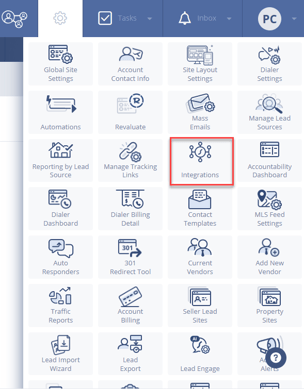
- Select Sierra Interactive from the integrations list.
- Click Copy API Key.
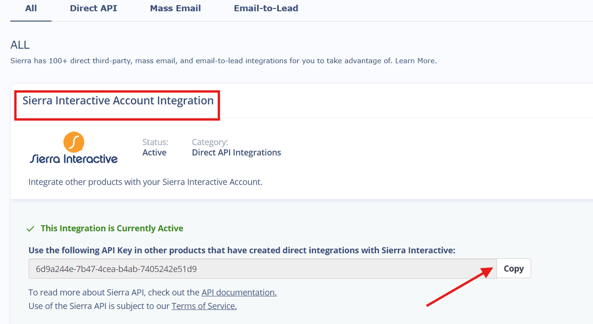
⚠️ Keep your API key secure and share it only with trusted sources. If your key is ever compromised, you can generate a new one by disabling and re-enabling the integration, but this will invalidate the old key on all integrations using it.
Step 2: Send Your API Key to Ylopo
Email your API key to support@ylopo.com and request activation of the Sierra Interactive integration. Ylopo's team handles the technical setup on their end. Once complete, lead data will begin syncing automatically.
What Syncs to Sierra
Once the integration is active, the following data flows from Ylopo into your Sierra CRM.
Lead Sources
Each lead includes a source indicating how and where they were captured in Ylopo:
- Ylopo — Buyer lead generated via Facebook marketing
- Ylopo Seller — Seller-type lead
- Home Valuation (Ylopo) — Lead captured through the Home Valuation tool on a Ylopo-branded website
- Open House (Ylopo) — Lead captured through the Open House tool on a Ylopo-branded website
- Branded Website — Lead captured through any other lead capture form on a Ylopo-branded website
Tags
Tags are applied to leads based on Ylopo's supported tag list and update as leads engage with Ylopo tools. These appear on the lead's profile in Sierra and can be used to trigger Lead Routing Rules or Action Plans.
Activity Notes & Events
As leads interact with Ylopo's automated texting, listing alerts, and home search site, Sierra logs the following:
- A note in the lead's History with details of the event
- The corresponding tag added to the lead
- A notification sent to the assigned agent via email or text
Priority events like YPRIORITY and HANDRAISER include a note explaining what triggered the flag, the tag applied, and an agent notification.
Ylopo Stars Link
The lead's registration note includes a link to their Ylopo Stars profile, and the link also appears in the Connected Platform field on the lead's detail page in Sierra. Use this to jump directly into the lead's full Ylopo profile for deeper context on their search behavior.
Best Practices for a Smarter Workflow
- Route by Ylopo source. Use the lead source values (e.g., Ylopo Seller, Home Valuation (Ylopo)) in your Sierra Lead Routing Rules to assign leads to the right agents automatically.
- Act on priority tags. Set up notifications or Action Plans triggered by YPRIORITY and HANDRAISER tags so high-intent leads get immediate follow-up.
- Use Stars before you call. Check the Ylopo Stars link in the lead's registration note or Connected Platform field before reaching out — their search history and behavior give you useful context for the conversation.
- Protect your API key. Only share your Sierra API key with Ylopo support. If it's ever exposed, regenerate it immediately through your Integrations settings.
FAQs
- Why aren't Ylopo leads appearing in Sierra?
Contact Ylopo support at support@ylopo.com to confirm the integration has been fully activated on their end. The most common cause is an incomplete setup. - Can I use Ylopo tags to trigger automations in Sierra?
Yes. Tags synced from Ylopo can be used as conditions in Lead Routing Rules and Action Plans. For example, you can auto-assign HANDRAISER leads to a specific agent or enroll them in a high-priority follow-up sequence. - What happens if I regenerate my Sierra API key?
Your new key will need to be shared with Ylopo support to restore the connection. The old key is immediately invalidated, which will also break any other integrations using it. - Where do I find the Ylopo Stars link for a lead?
It appears in two places: the lead's initial registration note in their History, and the Connected Platform field on their Lead Detail page.