
Table of Contents
Why This Feature Matters
Lead Source Reporting helps you understand which sources are generating leads — and which are actually closing. With this data, you can:
- Identify which lead sources produce the highest conversion rates and ROI
- Calculate cost-per-lead and transaction value by source
- Track agent performance across sources for coaching and team reviews
- Share downloadable reports with leadership or partners
Who Can Access Lead Source Reporting
Access to Lead Source Reporting is controlled by user role and permissions.
| User Type | Default Access | What They Can See |
|---|---|---|
| Primary Manager | Full access (automatic) | All tabs |
| Manager-level user | Requires permission grant | All tabs (full) or limited tabs |
| Agent / Lender | Requires permission grant | Limited tabs only |
To grant access, go to a user's profile and assign one of the following permissions: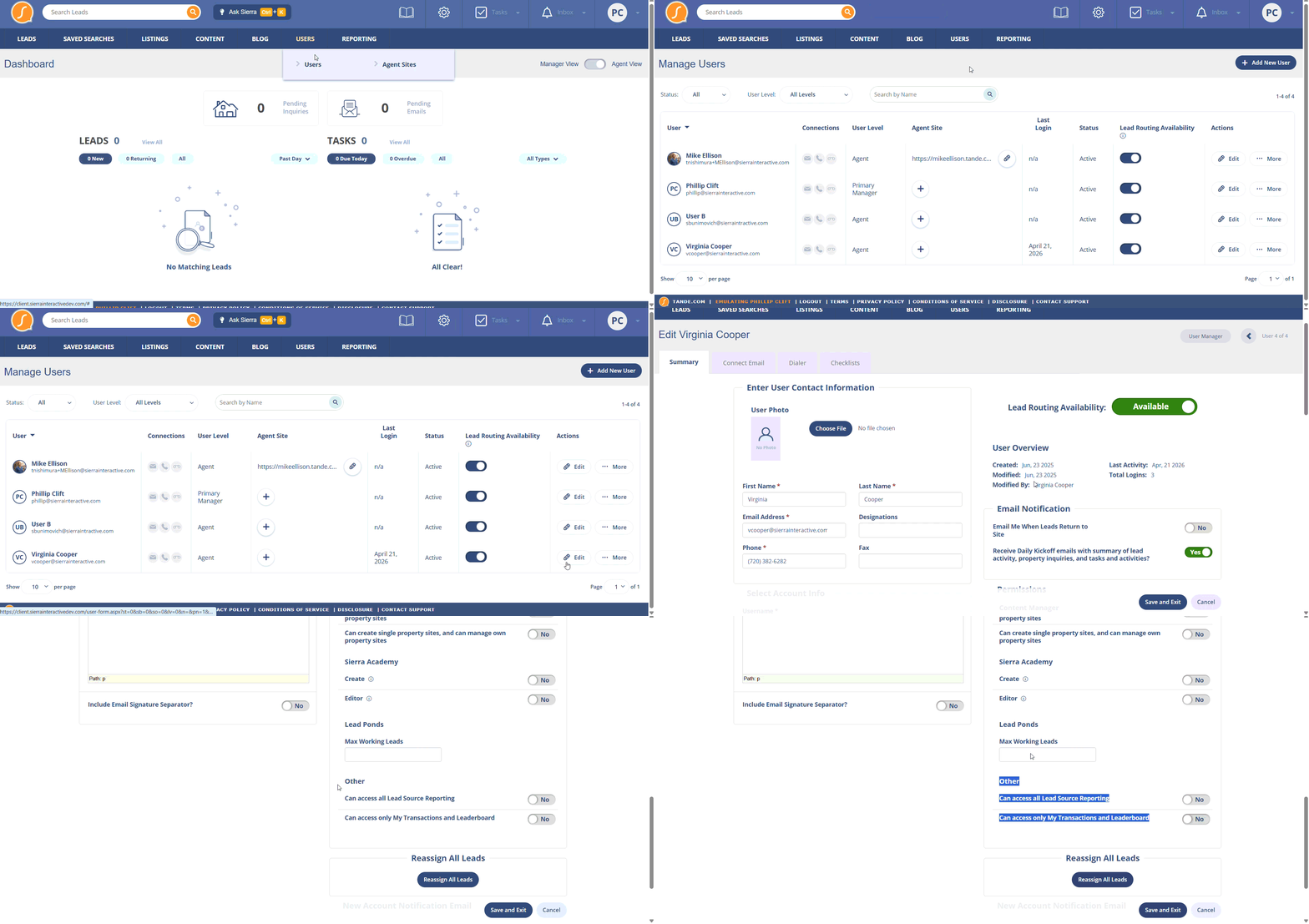
- Can access all Lead Source Reporting — grants access to all four tabs
- Can access only My Transactions and Leaderboard — grants access to the My Transactions and Leaderboard tabs only
⚠️ Without one of these permissions, non-Primary Manager users will not see Reporting by Lead Source in their navigation.
Navigate to Lead Source Reporting
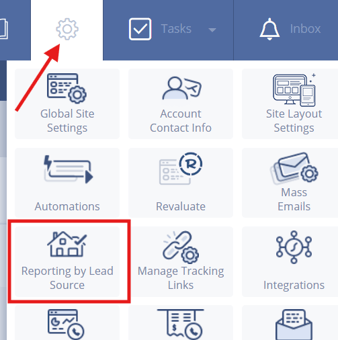
- Click the gear icon in the top navigation of your Sierra admin
- Select Reporting by Lead Source
Explore the Reporting Tabs
The tabs you see depend on your access level.
Full Access Users
Source Reporting
Displays performance data broken down by lead source. Columns include leads generated, transactions, conversion rate, cost-per-lead ($ Per Lead), and total transaction value. Use this tab to evaluate which sources are delivering the most value.
All Transactions
Lists every closed transaction across your account, with details like transaction date, amount, lead type, and the associated agent. Use this tab for a complete transaction history.
All Agents
Shows performance data organized by agent rather than by source. Use this tab to compare agent output and identify coaching opportunities.
My Transactions
Shows only the transactions associated with the logged-in user. Available to all users who have any level of Lead Source Reporting access.
Filter and Export Reports
Filter by Date Range
Available in all tabs. Use the predefined options (Today, This Month, Last Month) or select a custom date range and click Apply.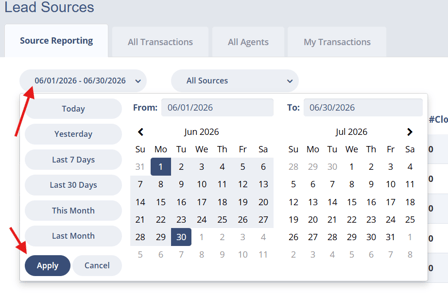
Filter by Lead Source
Available in the Source Reporting and All Agents tabs. Use the All Sources dropdown to narrow data to one or more specific lead sources.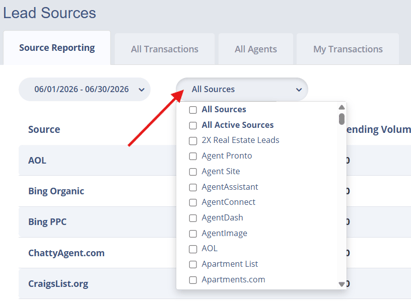
Export Reports
You can download data from the Source Reporting and All Agents tabs in PDF, Excel, or CSV format for offline use or to share with your team.
Add Transaction Details to a Lead
Transaction data powers the reporting in this tool. Here's how to log a transaction from a lead's detail page:
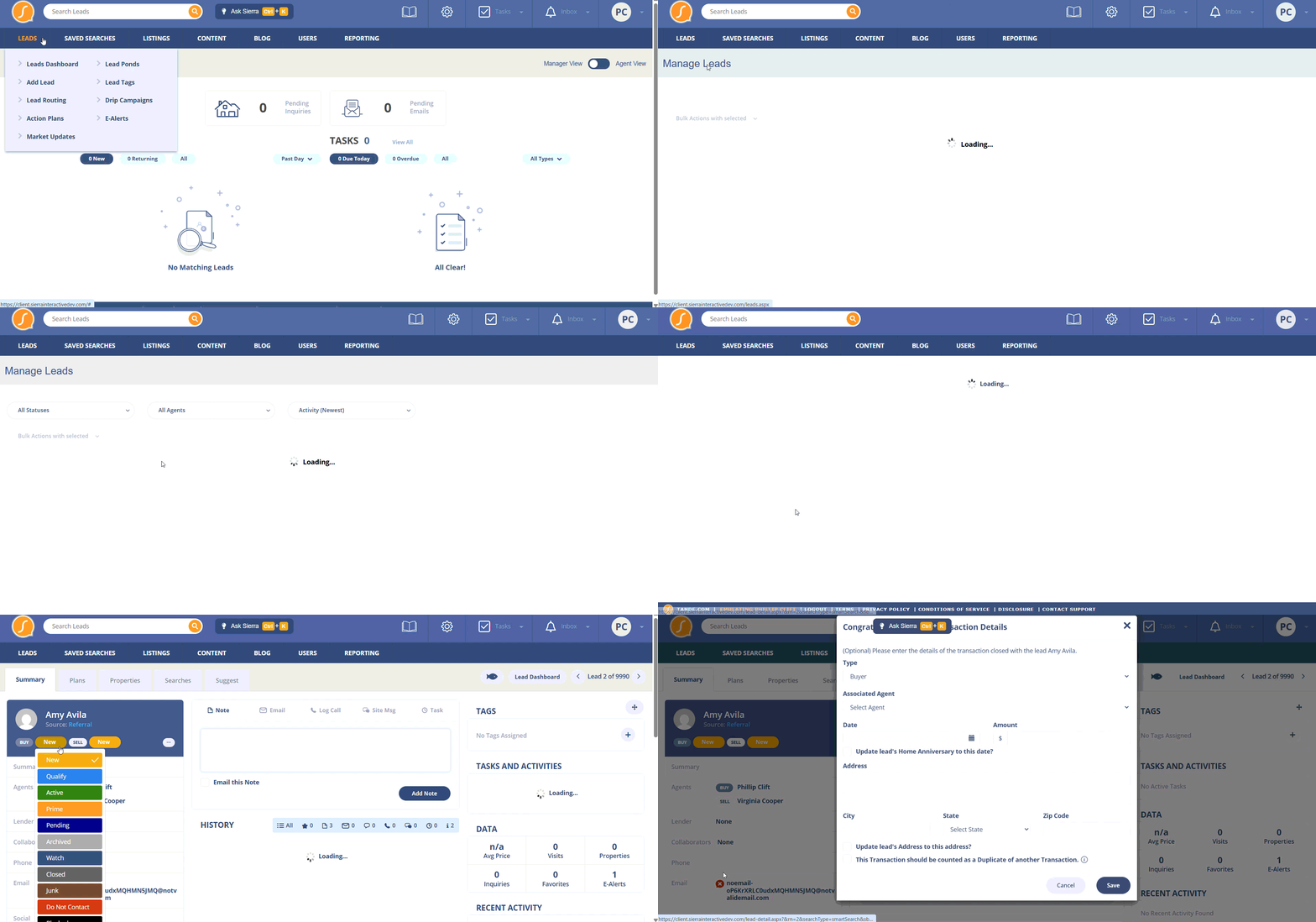
- Open the lead's detail page
- Change their status to Closed, or click Add Transaction
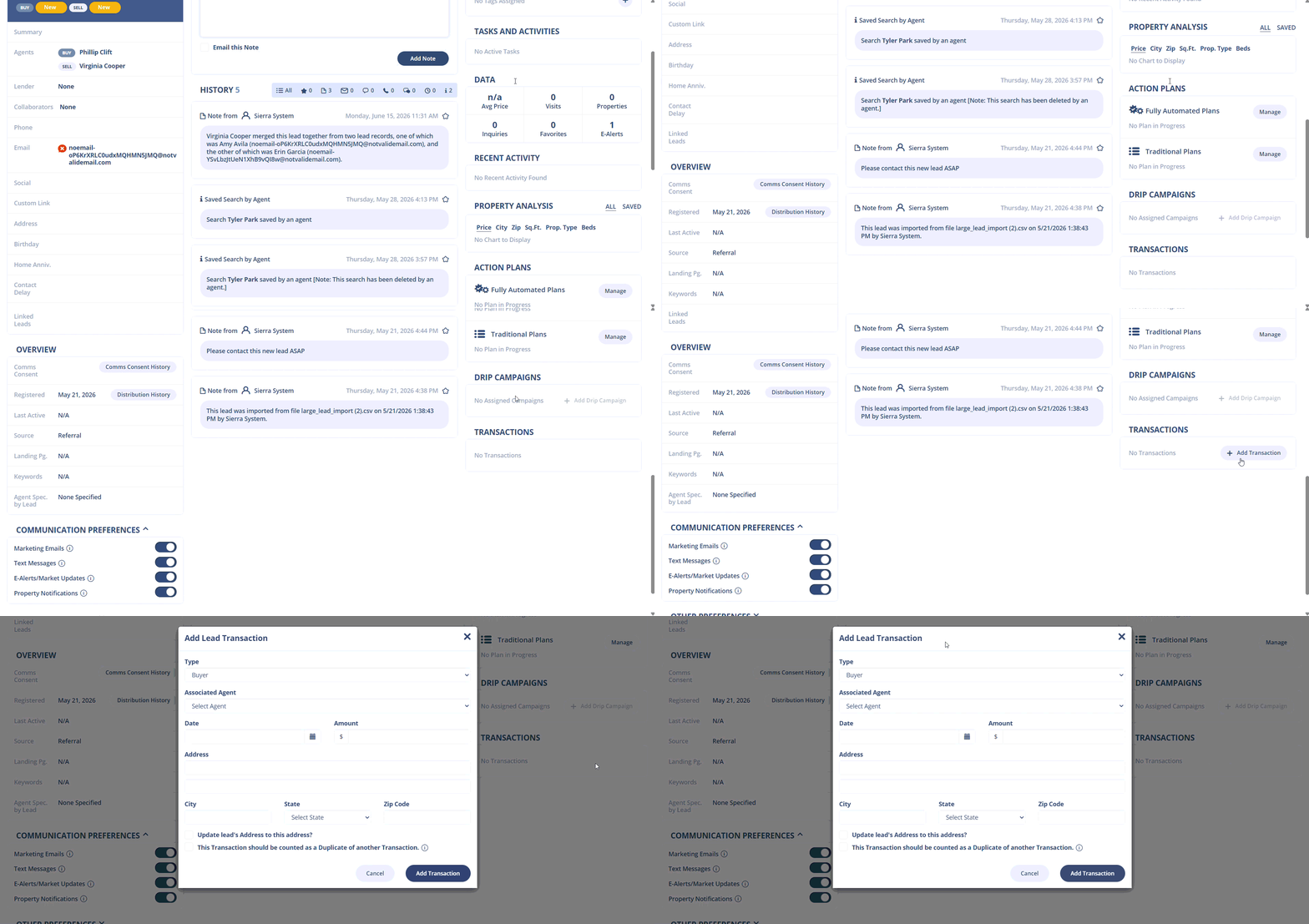
- Fill in the transaction details:
- Transaction date
- Transaction amount
- Lead type (Buyer or Seller)
- Any additional relevant fields
- Click Save
Once saved, the transaction appears in the lead's Summary tab and is reflected in Lead Source Reporting.
⚠️ Only Primary Managers and Manager-level users can assign the Associated Agent field when logging a transaction. Agent-level users logging their own transactions will not see this field.
Best Practices
- Log transactions consistently. Reporting is only as accurate as the data you enter. Make transaction entry part of your closing workflow.
- Review Source Reporting monthly. Regular check-ins help you spot trends before they become costly especially if you're running paid lead sources.
- Use All Agents for coaching conversations. Pull agent-level data before one-on-ones to ground performance discussions in real numbers.
- Share exports with leadership. The PDF and CSV export options make it easy to include lead source data in team meetings or investor reviews.
- Grant agents limited access. Giving agents access to My Transactions and the Leaderboard encourages accountability without exposing team-wide data.
Troubleshooting Common Issues
- Issue: An agent or lender can't see Reporting by Lead Source in their navigation.
Solution: Go to their user profile and assign either Can access all Lead Source Reporting or Can access only My Transactions and Leaderboard. Without one of these permissions, the section won't appear for them. - Issue: No data appears in Source Reporting or All Transactions.
Solution: Check that your date range filter is set correctly and that transactions have been entered for leads in that range. Reporting only reflects manually entered transaction data. - Issue: A transaction is showing under the wrong agent.
Solution: Only Primary Managers and Manager-level users can edit the Associated Agent field on a transaction. Have a manager update the record directly from the lead's detail page.
FAQs
- Who can assign transactions to agents?
Only Primary Managers or Manager-level users with the appropriate permission can assign or change the Associated Agent field on a transaction. Agent-level users can log their own transactions but cannot assign them to other agents. - What does "$ Per Lead" mean in Source Reporting?
This column shows the calculated value per lead for each source, based on transaction data entered in the system. - Can I filter reporting by Buyer vs. Seller transaction type?
No, transaction types are included together in all reporting views. You can specify Buyer or Seller when logging individual transactions, but the reporting tabs don't yet support filtering by type. - Why does a lead source show transaction value for leads outside my selected date range?
The date filter applies to lead registration date, not transaction date. If a lead registered in the selected range later closed outside that range, their transaction will still be included in the data. - Where do lead sources come from? Can I add my own?
Yes. Lead sources are managed separately in Manage Lead Sources. See Managing Lead Sources for instructions on adding, editing, and deactivating sources. - How do Tracking Links connect to Lead Source Reporting?
When a lead comes in through a tracking link, Sierra automatically assigns the lead source associated with that link. This means your reporting data can be populated without manual source entry. See Create Tracking Links to Capture More Leads and Promote Your Website Content with Tracking Links for setup instructions.