
Table of Contents
- Who This Article Is For
- Why These Scenarios Matter
- Scenario 1: Reassign Lead if No Initial Call Is Made
- Scenario 2: Create a Task When a Lead Contacts the Agent First
- Scenario 3: Reassign a Lead After a High-Intent Request Goes Unanswered
- Scenario 4: Flag High-Intent Listing Activity with No Outreach
- Scenario 5: Tag and Alert Manager When an Agent Has No Contact for 14 Days
- Best Practices
- Troubleshooting Common Issues
- FAQs
Who This Article Is For
This article is written for Primary Managers and Managers who want to use Sierra Automations to monitor agent follow-up, flag inactivity, and trigger reassignments without manually reviewing every lead.
⚠️ Permissions note: Only Primary Managers and Managers can create and manage Automations in the CAA. Agents cannot create account-level Automations.
If you haven't built a Sierra Automation yet, start here first:📄 Creating Your First Sierra Automation (Simple Step-by-Step)
Why These Scenarios Matter
Managers can't review every lead record manually. These five automation scenarios are designed to do the watching for you by surfacing the gaps that cost your team closings.
Each scenario targets a specific accountability failure:
- No initial call: New leads assigned to an agent but never contacted
- Unreciprocated inbound contact: A lead texts or calls, the agent doesn't respond by phone
- High-intent requests ignored: A lead asks for info or schedules a showing and gets silence
- Listing engagement with no follow-up: A lead views or saves a property multiple times with no outreach
- Long-term inactivity: Leads no one has touched in two weeks or more
None of these require you to micromanage. You configure the automation once, and Sierra flags the problem.
Scenario 1: Reassign Lead if No Initial Call Is Made
The problem: An agent receives a new lead but never attempts a call. The lead goes cold before anyone notices.
| Field | Setting |
|---|---|
| Trigger | Lead registered 1 day ago |
| Condition | Agent has not made a call |
| Action | Create task for Primary Manager to reassign lead to another agent or Lead Pond |
| Frequency | Once per lead |
How to set this up:
- In the CAA, click the Gear icon and select Automations.
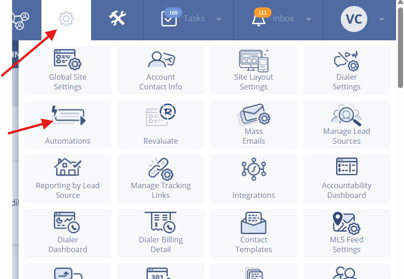
- Click + New Automation.

- Set the trigger to Lead Registered with a delay of 1 day.
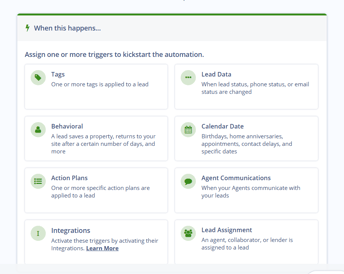
- Add a condition: Agent has not made a call.
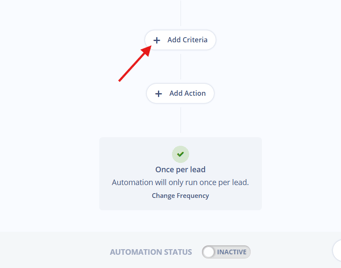
- Set the action to Create Task and assign it to the Primary Manager with instructions to reassign.
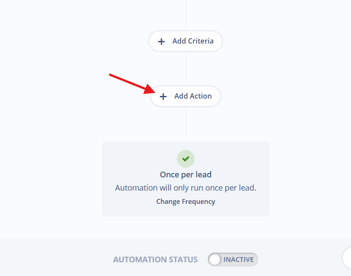
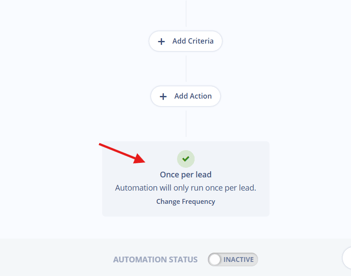
- Set frequency to Once per lead.
- Name, save, and activate.
💡 Cross-reference: If you're routing leads to a pond instead of an agent, see Setting Up and Managing Sierra Lead Ponds (Manager Guide).
Scenario 2: Create a Task When a Lead Contacts the Agent First
The problem: A lead reaches out by email, text, or call and the agent hasn't called back. The lead is warm and waiting.
| Field | Setting |
|---|---|
| Trigger | Lead contacts via email, text, or call |
| Condition | No agent phone call in the past 1 day |
| Action | Create follow-up call task assigned to the agent |
| Frequency | Every instance |
How to set this up:
- Set the trigger to Lead Contacts Agent (email, text, or call).
- Add a condition: No agent phone call in the past 1 day.
- Set the action to Create Task — a follow-up call assigned to the lead's assigned agent.
- Set frequency to Every instance.
- Name, save, and activate.
⚠️ Setting frequency to Every instance means this automation will fire each time a lead initiates contact without a call response. Monitor task volume in the early days to confirm the trigger behavior matches your expectations.
Scenario 3: Reassign a Lead After a High-Intent Request Goes Unanswered
The problem: A lead requests more information or schedules a showing and the agent doesn't call within 24 hours.
| Field | Setting |
|---|---|
| Trigger | Lead requests info or schedules a showing |
| Condition | No call within 1 day |
| Action | Create task for Primary Manager to reassign lead to another agent or Lead Pond |
| Frequency | Once per day |
How to set this up:
- Set the trigger to Lead Requests Info or Lead Schedules Showing (configure both if available, or create two separate automations).
- Add a condition: No call within 1 day.
- Set the action to Create Task for the Primary Manager to reassign.
- Set frequency to Once per day.
- Name, save, and activate.
💡 This scenario pairs well with a Traditional Action Plan that fires on high-intent triggers. See Maximize Lead Engagement with Traditional Action Plans.
Scenario 4: Flag High-Intent Listing Activity with No Outreach
The problem: A lead views or saves the same listing multiple times but the agent hasn't reached out in three days.
| Field | Setting |
|---|---|
| Trigger | Lead views or saves a listing 3 or more times |
| Condition | No outreach in the past 3 days |
| Action | Create follow-up call task assigned to the agent |
| Frequency | Every instance |
How to set this up:
- Set the trigger to Lead Views Listing or Lead Saves Listing with a threshold of 3 or more times.
- Add a condition: No outreach in the past 3 days.
- Set the action to Create Task — a follow-up call assigned to the agent.
- Set frequency to Every instance.
- Name, save, and activate.
Scenario 5: Tag and Alert Manager When an Agent Has No Contact for 14 Days
The problem: A lead has been in an agent's pipeline for two weeks with no contact attempt. You need a way to surface these leads without running manual reports every day.
This scenario uses a three-automation chain:
Automation 5A — Apply a Tag
| Field | Setting |
|---|---|
| Trigger | Lead returns to site after 14 days |
| Condition | No call in the past 14 days |
| Action | Apply tag: No Contact – 14 Days |
| Frequency | Once per lead |
Automation 5B — Alert the Manager
| Field | Setting |
|---|---|
| Trigger | Lead has tag: No Contact – 14 Days |
| Action | Create task for Primary Manager to review and reassign |
| Frequency | Once per lead |
Automation 5C — Remove the Tag (Optional but Recommended)
| Field | Setting |
|---|---|
| Trigger | Lead has tag: No Contact – 14 Days |
| Condition | Call made within the past 14 days |
| Action | Remove tag: No Contact – 14 Days |
| Frequency | Every instance |
⚠️ Automation 5C keeps your tagging clean. Without it, leads that get contacted will continue to carry the No Contact – 14 Days tag indefinitely, making the tag unreliable as a filter.
Build order: Create 5A first, then 5B, then 5C. All three must be active for the chain to work correctly.
💡 Once tagged, you can build a Smart Filter to pull all
No Contact – 14 Daysleads into a persistent list for regular review.
Best Practices
- Start with one scenario, not five. Scenario 1 (no initial call) has the highest impact for most teams. Get it running before layering in the others.
- Communicate automation rules to your agents. Agents should know a missed call triggers a manager task. Transparency prevents confusion and improves buy-in.
- Review automation activity monthly. Check whether tasks are being created and completed, or just piling up. Adjust trigger timing if task volume is unmanageable.
- Use reassignment to a Lead Pond as a default fallback. If you don't have a specific agent ready, routing to a pond keeps the lead in play. See Setting Up and Managing Sierra Lead Ponds (Manager Guide).
- Pair with the Agent Leaderboard. Automations surface individual lead issues; the Leaderboard shows patterns across your team. Use both. See Tracking Agent Performance with the Agent Leaderboard.
Troubleshooting Common Issues
- An automation is active but tasks aren't being created.
Confirm the trigger conditions are being met and check the lead record to verify the expected activity (call, tag, etc.) is logged. Use the automation's activity log if available to see whether it has fired. - Tasks are firing too frequently and overwhelming the agent or manager.
Adjust the Frequency setting. Switch from Every instance to Once per lead or Once per day to reduce volume. - The tag from Scenario 5 isn't being removed after contact is made.
Confirm Automation 5C is active and that the condition is set to detect a call within the correct timeframe. Verify the call was logged in the lead record — calls made outside the CRM won't register. - Automations are not available in the CAA.
Ensure you are a Manager or Primary Managwer-level user and you have the Dialer setup. See Activate and Manage the Sierra Dialer for Your Account (Manager Guide).
FAQs
- Can I customize the trigger timeframes in these scenarios?
Yes. The timeframes listed (1 day, 3 days, 14 days) are starting points. Adjust them to match your team's expected response windows. - Can I reassign leads to a Lead Pond instead of a specific agent?
Yes. When setting the reassignment action, you can target either a specific agent or a Lead Pond. Lead Ponds are useful when no agent is pre-designated for a fallback. - Do agents see these automations?
Agents see the tasks that automations create, but they don't have access to the automation settings in the CAA. Only Primary Managers and Managers can view or edit automations. - Can one lead trigger multiple automations at once?
Yes. A single lead activity can satisfy the trigger conditions of more than one automation. Monitor your task output after activation to confirm you're not creating duplicate or conflicting tasks. - What happens if I delete an automation that's part of a chain (like Scenario 5)? The remaining automations in the chain will still run, but the logic will break. For example, deleting 5C means the cleanup tag removal won't fire. Always deactivate rather than delete when testing or pausing.