
Table of Contents
- What are Action Plans?
- Before You Begin
- Create a Traditional Action Plan
- Best Practices
- Troubleshooting Common Issues
- FAQs
What Are Action Plans?
Action Plans are automated follow-up workflows in Sierra that deliver a sequence of activities (emails, texts, calls, and tasks) to leads on a defined schedule. Traditional Action Plans are the version that combines those automated steps with manual touchpoints that prompt team members to take action (such as making a phone call or sending a personalized message). This is different from Fully Automated Action Plans, which run entirely without user input.
Use them when you want a repeatable, consistent process that still leaves room for personal outreach.
See also: Scale Your Lead Follow-Up with Fully Automated Action Plans | Pairing Lead Engage with Action Plans and Drip Campaigns
Before You Begin
Confirm the following before creating or running a Traditional Action Plan:
- Sierra Dialer enabled at the account level
- Sierra Dialer connected at the user level
- Email account connected in your user profile
- Permissions confirmed: You must be the Primary Manager, or have the permission Can manage Contact Templates, Drip Campaigns, and Action Plans enabled in your User Profile
⚠️ Without the correct permissions, you won't be able to create or edit plans. Contact your account admin if the option isn't available to you.
Create a Traditional Action Plan
Step 1: Set up Plan
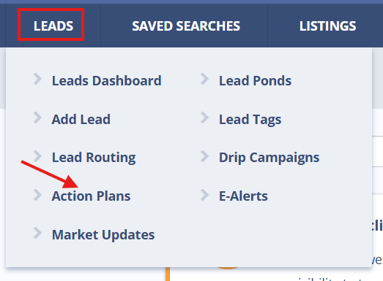
- Navigate to Leads > Action Plans
.
- Click + New Action Plan.
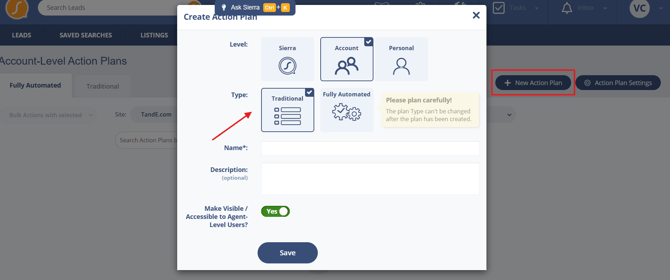
- Select Traditional.
- Enter a Name (required) and an optional Description.
- Click Save.
The plan is now saved in draft state. You'll add activities in the next step.
Step 2: Add Activities to a Plan
Activities are the individual steps in your plan. Each one scheduled relative to when the plan starts or the previous activity fires.
- Open the plan and click + New Activity.
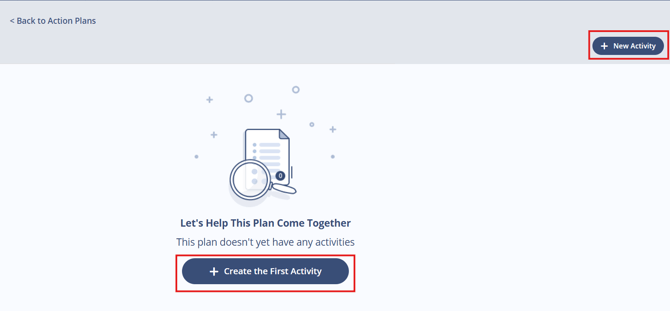
- Select an activity type:
- Phone Call
- Text Message
- On-Site Message
- Task
- Configure the activity settings:
| Setting | Description |
|---|---|
| Assignee | Who is responsible: Buyer Agent, Listing Agent, Lender, or Manager |
| Timing | When the activity fires relative to plan start or the previous activity |
| Drop Rules | Conditions under which the activity should be skipped |
| Template / Content | Message content for emails, texts, and on-site messages |
| Auto Send | Whether the activity sends automatically or requires manual action |
| Notes | Internal notes for the assignee (optional) |
- Click Save Activity to add the activity to the plan.
- Repeat for each step in your workflow.
⚠️ Phone Call and Task activities are always manual. They generate a notification in the assignee's Task Manager when due, but do not fire automatically.
Step 3: Apply a Plan to Leads
You can apply a Traditional Action Plan automatically or manually.
Automatically
- Lead Routing Rules — assign a plan when a lead is routed to an agent
- Tracking Link Generator — trigger a plan when a lead arrives through a specific link
Manually
- Lead Dashboard — select multiple leads and use Bulk Actions to apply a plan
- Lead Detail Page — open an individual lead and apply a plan from their profile
Step 4: Manage Plans in the Dashboard
The Action Plan Dashboard gives you a full view of all plans and their status.
Navigate to Leads > Action Plans to access it.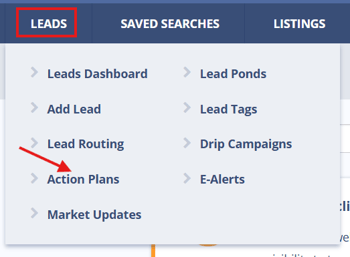
From the dashboard you can:
- Edit the entire plan or modify individual activities
- View leads currently assigned to each plan
- Duplicate a plan to use as a starting point for a new one
- Delete a plan (note: this cannot be undone)
- Track progress — see how many leads are In Progress or Completed
- Filter by Level — use the Level dropdown to toggle between Personal and Account-Level plans
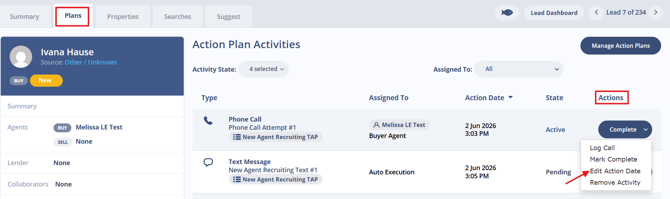
Step 5: Edit Scheduled Activity Dates
You can change the scheduled date of any activity that hasn't fired yet.
From the Lead Detail Page:
- Open the lead's profile.
- Go to the Plans tab.
- Find the activity and click Edit Action Date under Actions.
Step 6: Use Templates for Messaging
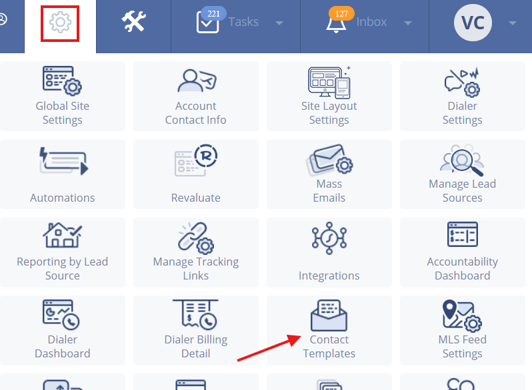
Email, text, and on-site message activities can use pre-built Contact Templates for consistent, time-saving communication.
- Create and manage templates under Gear Icon > Contact Templates
- When adding an activity, select an existing template or write custom content directly in the activity
- Templates can include merge fields (lead name, agent name, property details, etc.)
See also: Managing Contact Templates
Step 7: Track Manual Tasks in Task Manager
Any manual activity in a Traditional Action Plan (phone calls, tasks, manual texts) will surface as a notification in the assigned user's Task Manager when it comes due.
Users should check the Task Manager regularly to stay on top of pending activities. Missed manual activities do not re-notify automatically.
See also: Working with the Task Manager
Best Practices
- Name plans descriptively. Use names like "30-Day Buyer Nurture" or "New Lead – Agent Assigned" so plans are easy to identify in bulk application and reporting.
- Balance automation and manual outreach. Automated emails and texts handle routine touches; manual call steps keep a personal element in the workflow.
- Audit plans periodically. Review timing, content, and drop rules every few months to reflect changes in market conditions or team processes.
- Avoid overlapping plans without intent. Applying two plans to the same lead simultaneously can create conflicting activity schedules. Use drop rules or stagger start times if sequencing plans.
- Test before rolling out broadly. Apply a new plan to a small batch of leads first to confirm timing and content behave as expected.
Troubleshooting Common Issues
- Can't create or edit Traditional Action Plans
Confirm you're the Primary Manager or that the permission "Can manage Contact Templates, Drip Campaigns, and Action Plans" is enabled in your User Profile. Contact your admin if the option is grayed out. - Manual tasks aren't generating reminders
Check that activity due dates are set correctly and that the assignee's Task Manager notifications are active. Reminders only fire for manual activity types, automated activities don't appear in Task Manager. - A plan isn't applying when expected via Lead Routing Rules
Confirm the routing rule is active and that the correct plan is selected in the rule's action settings. Test by routing a sample lead manually. - Plan shows as In Progress but no activities have fired
Verify timing settings for the first activity. If Day 0 activities are set to delay, they won't fire immediately on plan start.
FAQs
- What's the difference between Traditional and Fully Automated Action Plans? Traditional Action Plans include a mix of automated and manual activities. Manual steps require a team member to take action (a call, a personal message) and appear in the Task Manager when due. Fully Automated Plans run entirely on auto-sent activities with no manual steps required.
- Will a Traditional Action Plan pause if a lead replies? No. Unlike drip campaigns, Traditional Action Plans continue running unless you manually pause or remove them. You'll need to remove or pause the plan on the lead's profile if a reply warrants a change in approach.
- Can I reschedule a single activity without affecting the rest of the plan? Yes. Rescheduling one activity via Edit Action Date only affects that specific step — the timing of other activities in the plan remains unchanged.
- Can I convert a Personal Action Plan to an Account-Level plan? No, Personal Plans cannot be directly converted. See Can Personal Action Plans Be Converted to Account-Level Action Plans? for the recommended workaround.
- Who can see and use Account-Level plans vs. Personal plans? Account-Level plans are visible to all users on the account. Personal plans are only visible to the user who created them. Use the Level dropdown in the Action Plan Dashboard to filter between them.