
Table of Contents
Overview
Sierra’s permission model provides team leaders and brokers a clear view of agent appointment activity without requiring agents to report it manually. To gain a factual basis for coaching and accountability, you can use these built-in visibility tools to monitor progress and identify growth opportunities.
How Visibility Works for Managers
Manager-level users have the ability to view scheduled appointments on any lead profile. This includes the appointment type, date, time, participants, and logged outcomes. To save time, you do not need to be copied on the meeting or ask the agent for a manual report. The information is available directly within the lead profile. This is a management tool designed to provide the same data-driven foundation for coaching conversations found in any professional sales organization.
The Role-Based Permission Model
Sierra uses a specific permission structure to determine who can see appointment data on a lead record. Visibility is granted based on the following user types:
Assigned Agents
The primary agent assigned to a lead can always view appointments, provided they have connected their Google Calendar to Sierra.
Collaborators
Users added to a lead as a collaborator can view appointments if they also have their Google Calendar connected.
Manager-Level Users
Managers can view appointments across the entire team. To enable this visibility, you must have your own Google Calendar connected to your Sierra account.
Standard Agents
Agents who are not assigned to a lead and are not listed as collaborators cannot view those specific appointment details.
If a team member does not have Google Calendar connected, appointments will not appear on the Lead Detail Page. This applies even to manager-level users.
Locating Appointment Data
To find appointment information once your calendar is connected, navigate to the following areas within the platform:
On a Lead Profile Page
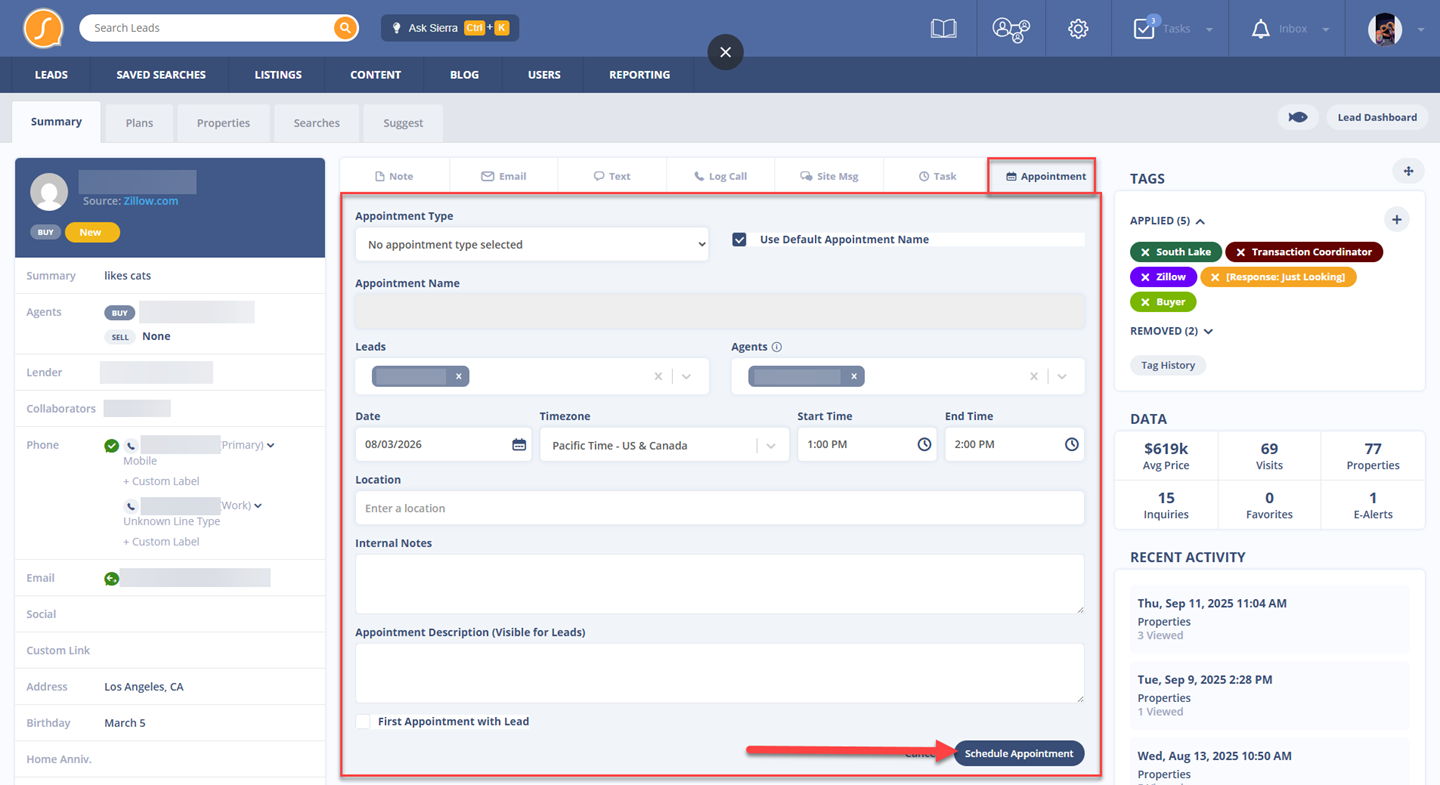
To see specific booking details, open a lead profile and select the Appointments tab. Here you will find the title, location, participants, and any notes or outcomes logged by the agent.
In the Lead History Tab
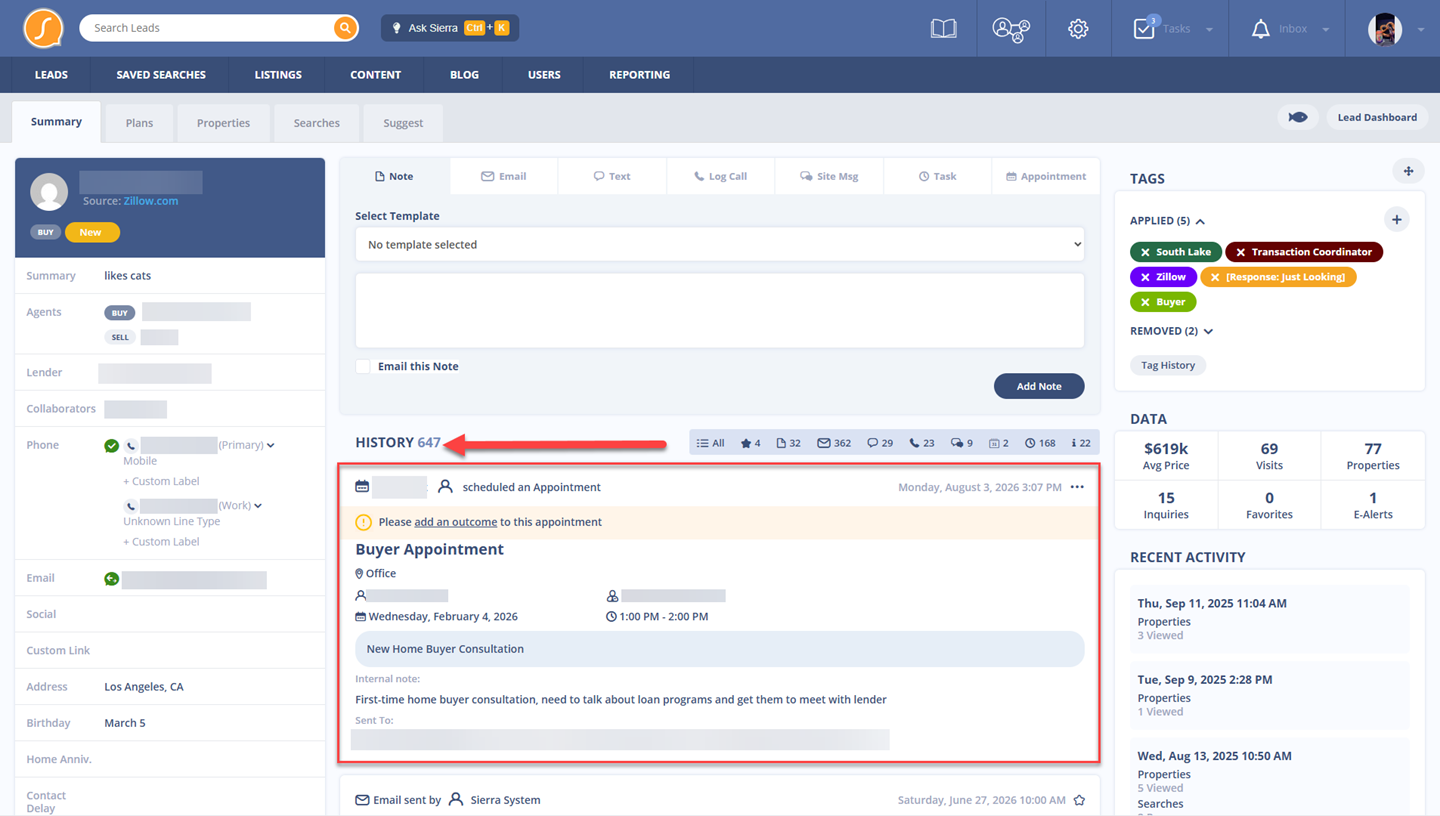
To see the full chronological log of activity, check the Lead History tab. This provides the most complete view of every appointment booked and every outcome recorded for that specific lead.
In the Task Manager
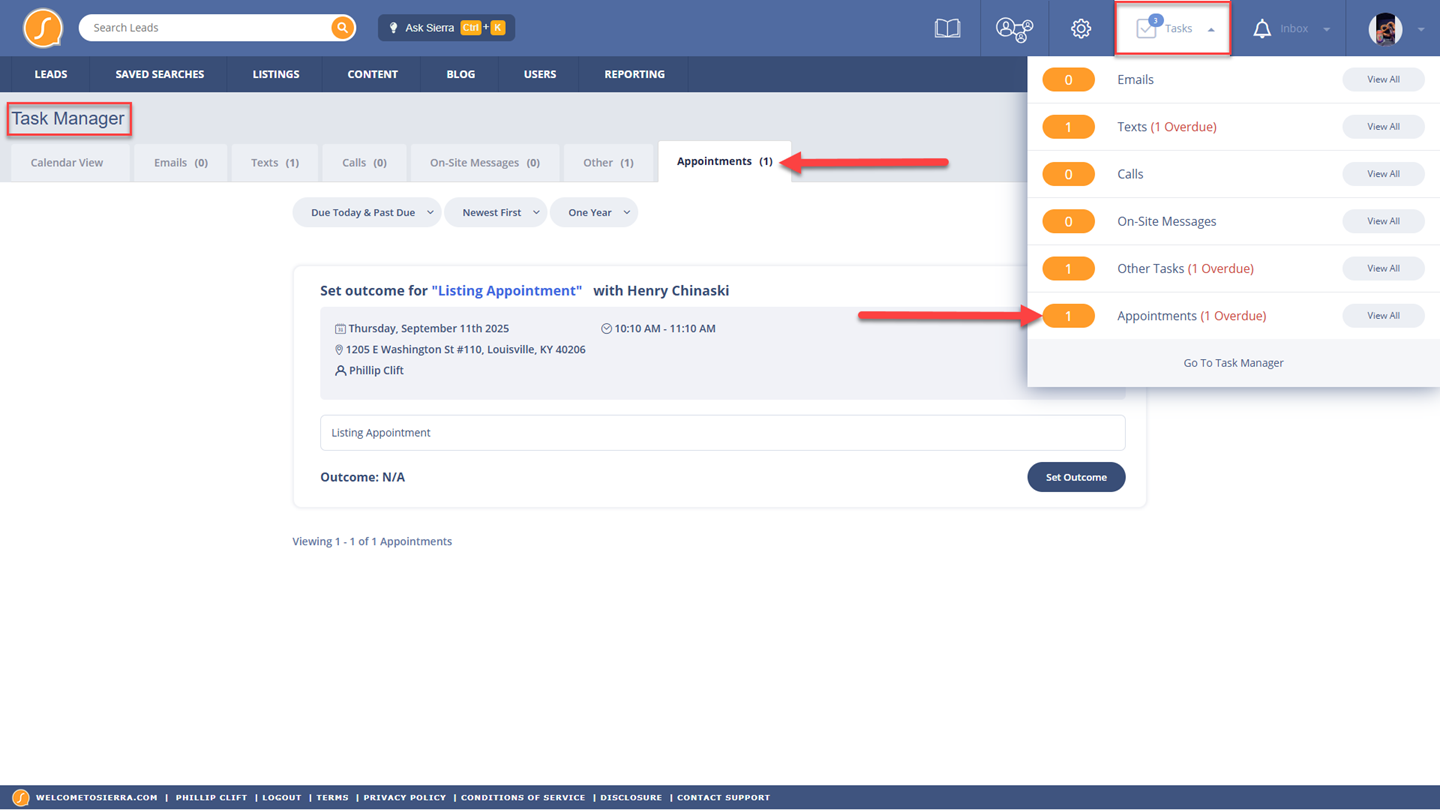
To see scheduled and pending tasks across the entire team, use the Task Manager. To compare activity, filter the Task Manager by a specific agent.
Coaching with Appointment Facts
To move away from subjective recall during 1:1 meetings, use appointment data as a shared factual basis for growth.
Identifying Unlogged Outcomes
To ensure your pipeline data is accurate, look for agents who book appointments but skip the outcome logging step. If you see appointment entries in the Lead History without corresponding outcomes, it may indicate a need for a better post-appointment workflow.
Spotting Stalled Momentum
To prevent leads from dropping out of the funnel, review the Lead History for leads with multiple appointments but no progression toward a milestone. You can review previous meeting notes to help the agent determine the best next step.
Comparing Team Volume
To provide targeted support, filter the Task Manager by agent to compare appointment volume relative to lead count. Agents with lower volume may benefit from coaching on conversion skills or follow-up habits.
Standardizing Team Activity
To get a genuinely reliable picture of your pipeline, try implementing these team-wide standards.
Require Connection During Onboarding
To ensure visibility from day one, make Google Calendar connection the first step for every new agent.
Standardize Appointment Names
To make team reporting comparable, use consistent names for different appointment types.
Establish Outcome Expectations
To maintain data integrity, set a firm expectation that every agent must log an outcome, add notes, and create a next step after every meeting.
Review History in Meetings
To reinforce high-quality data entry, review the Lead History during team deal reviews. This signals to agents that Sierra is the official source of truth for the business.
Frequently Asked Questions
Can I see appointments for all leads or only my own?
As a manager-level user, you can view appointments on any lead profile in your Sierra account, regardless of who is assigned to the lead.
What if an agent books a meeting directly in Google Calendar?
Appointments booked outside of Sierra will not appear in the lead profile, Lead History, or Task Manager. To ensure these are tracked in your reporting, encourage agents to book all appointments through Sierra.
Can I see the notes agents add?
Yes. Any notes logged as part of an appointment outcome are visible to managers in the Lead History section.
Can I be added as a participant?
To be included on the calendar invite and see the event on your own Google Calendar, ask the agent to add you to the Participants field in Sierra.