
Overview
Integrating Sierra Interactive with FUB allows you to sync leads, assignments, and activity between both platforms.
This guide walks through:
- How to connect your accounts
- What each sync setting controls
- How to configure your integration based on your workflow
Table of Contents
Before You Begin
Before setting up the integration:
- You must have admin access (Primary Manager or Manager user-level) in both systems
- You’ll need your FUB API key
- All users must have matching email addresses in both systems
- ⚠️This last point is critical as assignment syncing depends entirely on email matching⚠️
The FUB API Key must be created under the owner-level user of the FUB Account. If it is created under an Admin or Agent, it will not have the permissions to work.
Connecting FUB to Sierra
- Log into Sierra Interactive Client Admin Area (CAA)
- Navigate to the Gear Icon in the upper right hand corner
- Go to Integrations
- Find and click on the Follow Up Boss option
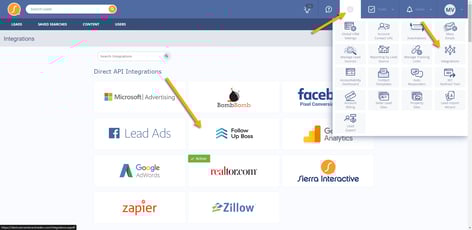
- Agree to the Acceptable Use Policy
- Enter your API Key
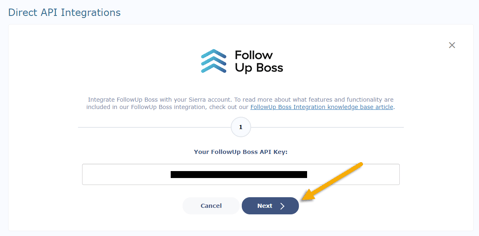
- Click Connect
Once connected, continue below for sync settings.
Configure Your Sync Settings
Each of the settings below can be configured now during setup or updated at any time later.
-
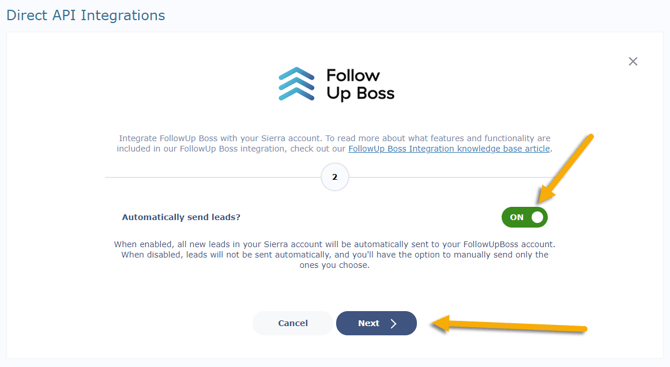
Send leads from Sierra to FUB automatically
-
Toggle ON or OFF. We recommend toggling ON to help automate the process. If OFF, leads can still be sent manually.
-
Click Next to proceed.
-
-
Use Lead Flow (Lead Routing) through FUB
-
Decide whether you want to use Lead Flow (Lead Routing) through FUB. Because Sierra lead routing may not always sync cleanly to FUB, we recommend toggling this ON and using FUB Lead Routing instead.
-
Optionally apply Auto-Created E-Alerts from Sierra. We recommend toggling this ON, as these alerts are behavior-based and will automatically update based on what the lead views and engages with on your site.
-
Click Next to proceed.
-
-
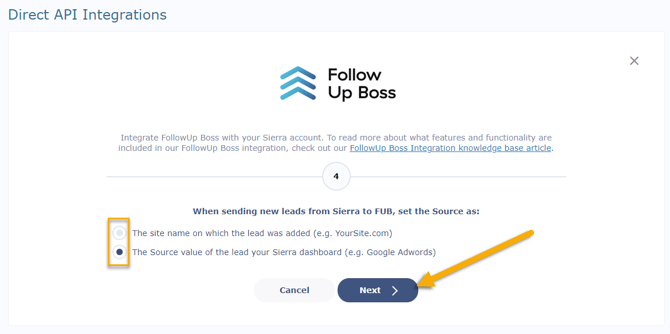
Choose lead source label
-
Confirm which lead source you want to appear in FUB when new leads are sent from Sierra. You can use either your Sierra site name or the original source value. For the most specific and accurate reporting, we recommend using the lead’s source value from your Sierra dashboard.
-
Click Next to proceed.
-
-
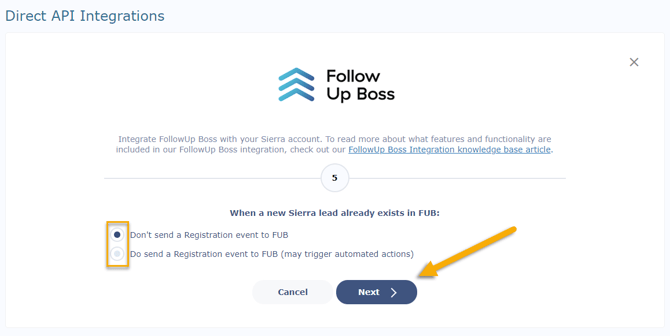
Send lead registration events to FUB
-
Decide whether you want to send a new lead registration event to FUB when syncing leads between the platforms. This may trigger automated actions in FUB. We recommend leaving this setting OFF and not sending registration events to FUB.
-
Click Next to proceed.
-
-
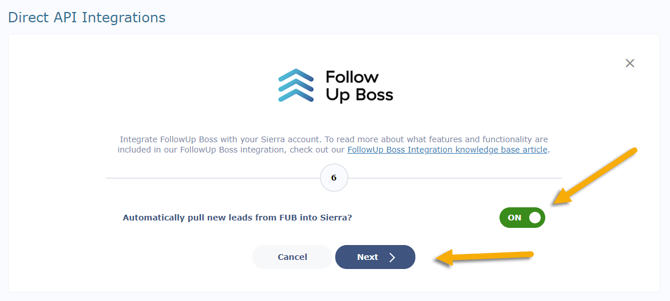
Sync new/updated leads from FUB to Sierra
-
Confirm whether you want new and updated leads from your FUB account to sync into Sierra automatically. We recommend toggling ON so you can use the features and tools in Sierra.
-
-
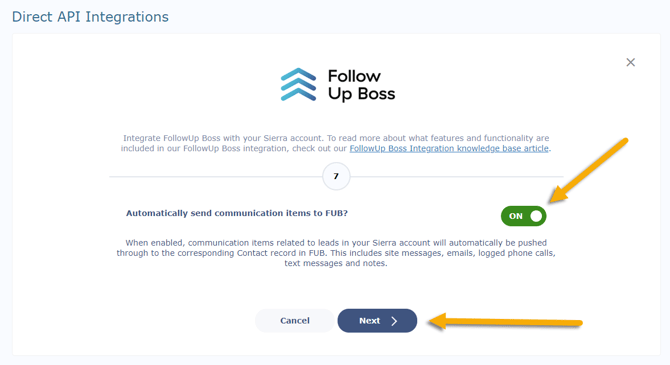
Send communication items from Sierra to FUB
-
Decide whether you want to sync communication items from Sierra to FUB. These can include site messages, emails, logged phone calls, text messages, and notes. We recommend toggling ON.
-
Click Next to proceed.
-
-
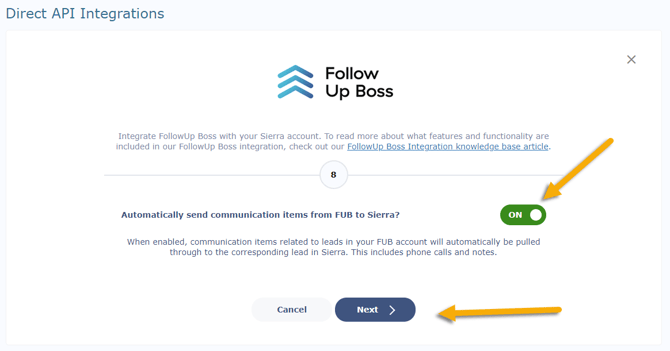
Send communication items from FUB to Sierra
-
Decide whether you want to sync communication items from FUB to Sierra. These can include phone calls and notes. We recommend toggling ON.
-
Click Next to proceed.
-
-
Enable notifications for sync issues
-
Decide whether you want to receive notifications about any issues keeping leads synced between Follow Up Boss and Sierra.
-
Click Next to proceed.
-
- Once you have completed the setup, you will need to start syncing your lead data follow the steps in Ensure Smooth Data Sync Between Sierra Interactive and Follow Up Boss
Best Practices
-
Golden Rule: Users must exist in both systems with the same email address for assignments and communication to sync correctly.
-
Include email addresses for all leads in FUB to ensure they sync to Sierra.
-
Avoid using Sierra Lead Ponds with this integration — they are not supported.
-
Be cautious using First to Claim routing in Sierra, as agent assignments may not sync correctly to FUB. Consider using:
-
Manual reassignment in FUB
-
FUB routing rules instead of Sierra’s
-
Alternative routing types in Sierra
-
-
FUB Lead Ponds will sync leads to Sierra only once the lead is claimed or reassigned.
-
Agent assignment updates in either system will reflect in the other within ~10 minutes.
Troubleshooting & Common Questions
Troubleshooting Common Issues
| Issue | Solution |
|---|---|
| Lead not syncing from FUB to Sierra | Ensure the lead has an email address in FUB |
| Agent assignments don't match | Verify user emails match in both systems. Avoid “First to Claim” routing in Sierra |
| Lead Ponds not behaving as expected | FUB Lead Ponds require lead claim or reassignment before agent assignment syncs |
| Communication not syncing | Double-check that message sync settings are toggled ON in both directions |
| Users missing in Sierra | Use the “Import Follow Up Boss Users to Sierra” option |
FAQs
-
What happens if a lead already exists in FUB when it registers in Sierra?
Sierra will assign the lead to the same agent the lead is already assigned to in FUB. -
Do lead tags sync between systems?
Yes. Lead tags added in either platform will sync to the other. -
Are listing alerts and lead activity visible in FUB?
Yes. When a lead views or saves listings on your Sierra site, that activity can be pushed to FUB with the following steps. To ensure the most accurate tracking of lead property activity:-
Set up Listing Alerts in Sierra so the lead link will appear in FUB.
-
Install the FUB Pixel in your Sierra site:
-
Log in to CAA → Gear icon → Site Layout Settings → Tracking and Conversion Codes.
-
Paste the FUB Pixel code into the
<head>section.
-
For more details on the FUB Pixel, see their overview article
-
-
Are secondary contact details shared?
Yes. Secondary phone numbers and emails in Sierra will push to FUB. -
Can I view lead details in both systems?
Yes. Each lead record will contain a link to view the lead in the other system.