
Summary
Sierra’s integration creates a seamless, bi-directional sync between Homebot and your Sierra CRM. Leads, seller intent signals, and Comparative Market Analysis (CMA) requests now sync automatically, eliminating manual entry and making Homebot engagement actionable inside Sierra.
Table of Contents
- Why This Integration Matters
- How the Integration Works
- How to Connect Homebot to Sierra
- What Sierra Adds Automatically
- Best Practices
- Troubleshooting Common Issues
- FAQs
Why This Integration Matters
Without a CRM integration, Homebot engagement data stays siloed. You can see that a homeowner is active, but you cannot take action on it from within Sierra. This integration changes that.
- Seller signals become CRM actions. When a lead hits "Likely to Sell" or "Highly Likely to Sell" in Homebot, a tag appears automatically in Sierra so you can trigger automations, filter your pipeline, or reach out while intent is high.
- CMA requests are logged without manual entry. When a homeowner requests a CMA through Homebot, Sierra creates a tag and note on that lead record automatically.
- Leads move between platforms without copy-paste. New leads from either system sync to the other, keeping your data consistent.
- You can push Sierra leads into Homebot with a single tag. No need to export or re-import contacts.
How the Integration Works
Homebot handles behavioral tracking and seller intent scoring. Sierra handles tagging, automation, filtering, and follow-up execution.
⚠️ This integration works at the account level, not per individual user.
In simple terms: Homebot detects behavior → sends signal → Sierra applies tag → you act.
When Homebot detects any of the following, Sierra responds automatically:
| Homebot Signal | What Sierra Does |
|---|---|
| Likely to Sell (score >50) | Applies Homebot - Likely to Sell tag, creates note, triggers automations |
| Highly Likely to Sell (score >70) | Applies Homebot - Highly Likely to Sell tag, creates note, triggers automations |
| CMA Request | Applies Homebot - CMA Requested tag, creates note, triggers automations |
| Homeowner Direct Message | Applies Homebot - Homeowner DM tag, creates note, triggers automations |
To push a lead from Sierra into Homebot, apply the Homebot - Add Client tag to the lead record. If the lead has a full address (street, city, state, zip), Homebot creates a home profile automatically.
⚠️ Tags are applied automatically based on Homebot's scoring. You cannot manually assign these tags to simulate the signal as they must originate from Homebot activity.
Before You Begin
You'll need the following before starting setup:
- Admin access in Sierra (only Primary Manager or Manager level users can access)
- An active Homebot account
- API Nation (the middleware that connects the two platforms)
- Dialer access (to set up the Dialer visit: Mastering the Sierra Dialer: A Complete Guide to Setup & Strategy
If you don't have an API Nation account, create one here before proceeding.
How to Connect Homebot to Sierra
Step 1: Request Your API Keys
Before configuring the integration, you'll need two API keys: one from Homebot and one from Sierra.
Contact your Sierra onboarding project coordinator or the Sierra Support team to initiate the request. You'll need to provide the name and email address associated with your Homebot account. Once your Homebot API Key has been generated, Sierra will provide you with both keys before you proceed.
Step 2: Go to the API Nation Setup Page
Navigate directly to the Sierra–Homebot integration page in API Nation here.
Step 3: Create or Log Into Your API Nation Account
Click Sign In / Sign Up. If you already have an API Nation account, log in and skip to Step 4. If you're creating a new account, complete the registration form and proceed to the next step.
Step 4: Verify Your Email
API Nation will send a verification email to the address you used to register. Click the Verify Email link to confirm your account. You'll be redirected back to API Nation automatically.
Step 5: Connect Your Sierra Account
Click Connect next to Sierra. In the popup:
- Paste your Sierra API Key into the top field.
- Enter a descriptive name for the connection (your site domain name works well).
- Click Connect.
Step 6: Connect Your Homebot Account
Click Connect next to Homebot. In the popup:
- Paste your Homebot API Key into the API Key field.
- Click Connect.
Step 7: Configure Workflow Settings
You'll have five settings to configure before finalizing the integration:
- Do not overwrite information in Sierra Interactive fields — Select this option if you do not want any pre-existing lead information in Sierra to be overwritten by data synced from Homebot.
- Customize Lead Source — Enter a text value for the lead source you'd like applied to new Homebot leads added to Sierra (e.g., "Homebot"). If left blank, the source will default to "Homebot."
- Assign agent to leads — Select a specific agent to assign all synced Homebot leads to, or select Use Lead Routing to have Sierra's Lead Routing Rules handle agent assignment instead.
- Enter Lead Tag to sync — Enter the tag value in Sierra that will trigger a lead to be pushed from Sierra into Homebot. This tag must be manually applied in Sierra to work. The default value is Homebot - Add Client.
- Sync Data From Selected Users — Select specific agents whose leads you want to sync into Homebot using the tag sync. Any leads assigned to agents not selected will be skipped. Leave the default of All to make every agent available for syncing.
Step 8: Save and Complete Setup
Click Save and Continue to finalize the integration.
What Sierra Adds Automatically
Once the integration is complete, Sierra automatically adds the following assets to your account. No manual setup is required.
5 Tags
| Tag | What It Means |
|---|---|
| Homebot - Add Client | A lead with a full address has been pushed from Sierra into Homebot |
| Homebot - CMA Requested | The lead submitted a CMA request through Homebot |
| Homebot - Highly Likely to Sell | The lead's Likely to Sell score has exceeded 70 |
| Homebot - Homeowner DM | The lead submitted a Homeowner Direct Message via Homebot |
| Homebot - Likely to Sell | The lead's Likely to Sell score has exceeded 50 |
⚠️ Tag spelling must match exactly for automations and Action Plans to trigger correctly. Do not rename or modify these tags.
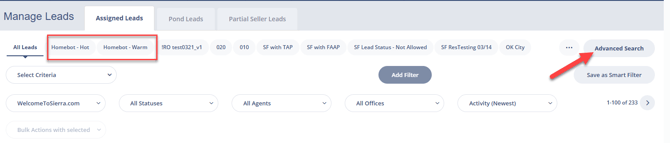
2 Smart Filters
- Hot Leads — filters by Homebot - CMA Requested + Homebot - Highly Likely to Sell
- Warm Leads — filters by Homebot - Likely to Sell
5 Automations
Verify that all automations are active after setup. If any appear inactive, contact Sierra Support.
💡To get started with Smart Filters & Action Plans follow:
Advanced Search and Smart Filters in the Leads Dashboard &
Scale Your Lead Follow-Up with Fully Automated Action Plans
Best Practices
- Build an Action Plan for seller signals. Use the
Homebot - Likely to SellandHomebot - Highly Likely to Selltags as triggers for a dedicated seller outreach sequence. Speed of response matters here as these leads are actively considering a move. - Create Smart Filters by Homebot tags. Keep a running view of all high-intent Homebot leads so you can prioritize follow-up without searching your full database.
- Add the CMA tag to your lead scoring criteria. A CMA request is one of the strongest seller intent signals available. Make sure it's weighted accordingly in your pipeline.
- Enroll your full database in Homebot, not just new leads. Homeowners who aren't active yet may become high-intent over time. Use the Homebot - Add Client tag in bulk to enroll existing contacts.
- Audit your tag automations quarterly. As your Action Plans and Lead Routing Rules evolve, revisit how Homebot tags feed into them to make sure nothing is falling through the cracks.
Troubleshooting Common Issues
-
Leads Are Not Syncing → Confirm API Nation is active, both API keys were entered correctly, and the integration is enabled.
-
Lead Did Not Create a Home Profile in Homebot → Check that the lead has a full address (street, city, state, zip code). Homebot cannot create a property profile without it.
- Tags Are Not Triggering Automations → Confirm that the tag spelling in your Action Plan trigger matches exactly, the tag existed before the automation was built, and the automation is currently active.
FAQs
- Is this integration per agent or per account?
It is configured at the account level. - Does this integration sync historical Homebot activity into Sierra? No. The integration only captures activity that occurs after the connection is established. Past engagement data, tags, and CMA requests are not retroactively imported.
-
Can I control which leads get added to Homebot?
Yes. Apply the designated tag in Sierra to push a lead to Homebot. - Does this replace Seller Lead Generation tools?
No. Homebot is designed for homeowner nurture and engagement, not seller lead generation. - Is there a limit to how many leads I can push to Homebot? Check your current Homebot plan for contact limits. Sierra does not impose a limit on the sync, but Homebot may.
- Who do I contact if the integration stops working? Start with Sierra Support. If the issue is on the Homebot side, you may need to contact Homebot support directly.