
Table of Contents
- What are Fully Automated Action Plans?
- Before You Begin
- Create a Fully Automated Action Plan
- Best Practices
- Troubleshooting Common Issues
- FAQs
What are Fully Automated Action Plans?
Action Plans are automated follow-up workflows in Sierra that deliver a sequence of activities (emails, texts, calls, and tasks) to leads on a defined schedule. Fully Automated Action Plans run entirely without manual input, making them ideal for high-volume follow-up that needs to run consistently in the background.
The main benefits are:
- Automatically delivers emails, texts, and voicemail drops in a set sequence based on lead behavior.
- Triggers follow-up plans tailored to individual lead actions, enhancing relevance.
- Frees up your time while maintaining consistent engagement with prospects.
See also: Maximize Lead Engagement with Traditional Action Plans | Pairing Lead Engage with Action Plans and Drip Campaigns
Before You Begin
Confirm the following before creating or running a Traditional Action Plan:
- Sierra Dialer enabled at the account level
- Sierra Dialer connected at the user level
- Email account connected in your user profile
- Permissions confirmed: You must be the Primary Manager, or have the permission Can manage Contact Templates, Drip Campaigns, and Action Plans enabled in your User Profile
⚠️ Without the correct permissions, you won't be able to create or edit plans. Contact your account admin if the option isn't available to you.
Create a Fully Automated Action Plan
Step 1: Set up Plan
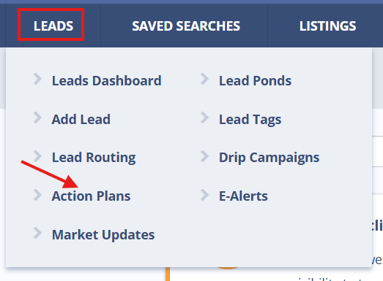
- Navigate to Leads > Action Plans
- Click + New Action Plan.
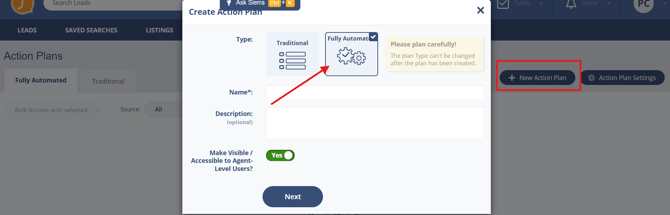
- Select Fully Automated.
- Enter a Name (required) and an optional Description.
- Click Next.
Step 2: Define Actionable Window Behavior
-
Choose whether to send the first message outside the actionable window (7am-11pm).
- Click Next.
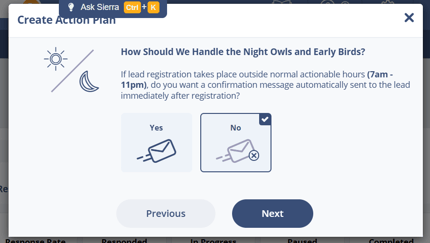
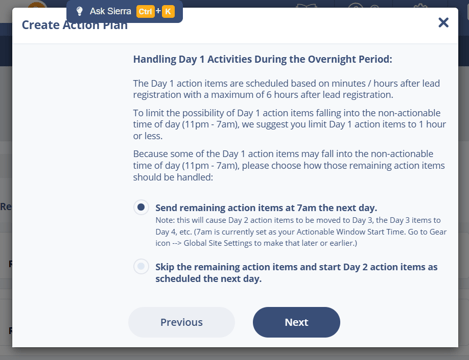
Step 3: Define Day 1 Activities
- Decide whether to send or skip Day 1 activities if timing falls outside the window
- Click Next.
Step 4: Set Pre-Plan, In-Plan, and Post-Plan Rules
-
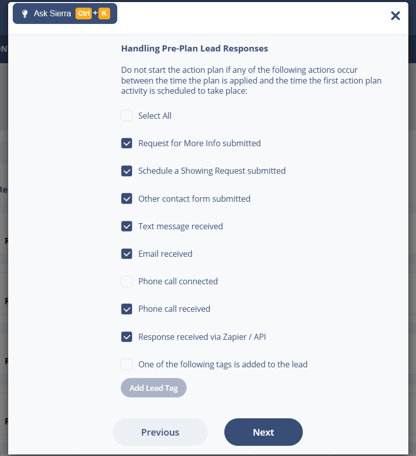
Pre-Plan: Stop the plan if the lead takes an action (e.g., form submission, contact) between the time the plan is applied and the time the first action plan activity is scheduled to take place
-
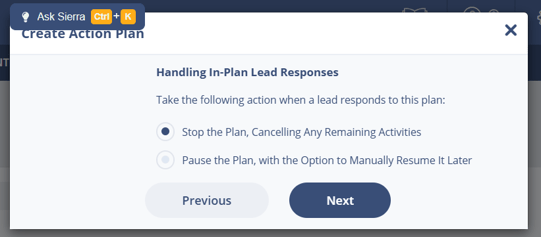
In-Plan: Decide what to do when a lead responds to the plan. Either Stop the Plan and cancel remaining activities or Pause the Plan.
-
Post-plan options based on lead behavior:
-
Lead responds: Trigger a drip campaign, traditional plan, or apply tags
-
Lead doesn't respond: Trigger another fully automated plan, traditional plan, drop campaign, or apply tags
-
Lead unsubscribes: Apply tags or assign new traditional plan
-
- Click Save.
Fully Automated Action Plans automatically pause when a lead does any of the following: sends a text or email, places a phone call, submits a contact form, or is marked as “Talked to Lead” in a logged call.
Step 5: Add Activities
Activities are the individual steps in your plan. Each one scheduled relative to when the plan starts or the previous activity fires.
-
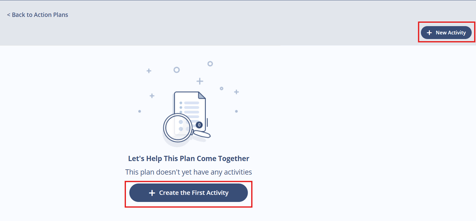
Open the plan and click +New Activity
-
Select an activity type:
-
Email: Select template or write custom message
-
Text Message: Use template or write your own
-
Voicemail Drop (ringless voicemails): Choose from existing recordings or upload a new one
-
For voicemail recordings, access Voice Messages Manager:
-
-
Record via headset, phone call, or upload an .mp3/.wav file
-
Optionally enter a script for reuse
-
- Configure the activity settings:
| Setting | Description |
|---|---|
| Sent From | Who is responsible: Buyer Agent, Listing Agent, Lender, or Manager |
| Timing | When the activity fires relative to plan start or the previous activity |
| Drop Rules | Conditions under which the activity should be skipped |
| Template / Content | Message content for emails, texts, and on-site messages |
| Auto Send | Whether the activity sends automatically or requires manual action |
-
- Click Save Activity to add the activity to the plan.
- Repeat for each step in your workflow.
Step 6: Apply a Plan to Leads
You can apply a Fully Automated Action Plan automatically or manually.
Automatically
- Lead Routing Rules — assign a plan when a lead is routed to an agent
- Tracking Link Generator — trigger a plan when a lead arrives through a specific link
Manually
- Lead Dashboard — select multiple leads and use Bulk Actions to apply a plan
- Lead Detail Page — open an individual lead and apply a plan from their profile
💡Manual assignment is limited to 50 leads per day.
Step 7: Manage Plans in the Dashboard
The Action Plan Dashboard gives you a full view of all plans and their status.
Navigate to Leads > Action Plans to access it.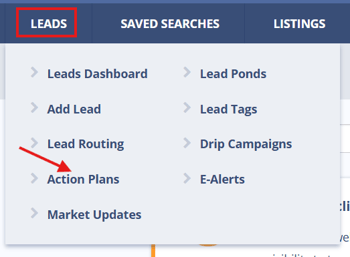
From the dashboard you can:
- Edit the entire plan or modify individual activities
- View leads currently assigned to each plan
- Duplicate a plan to use as a starting point for a new one
- Delete a plan (note: this cannot be undone)
- Track progress — see how many leads are In Progress or Completed
- Filter by Level — use the Level dropdown to toggle between Personal and Account-Level plans
⚠️ What Response Rate means: Response Rate shows what percentage of leads replied after being enrolled in this plan. It's calculated as the number of unique leads who triggered at least one response action divided by the total number of unique leads added to the plan. Response actions include email replies, inbound texts, phone calls, showing requests, contact form submissions, requests for more info, and tags added.
Best Practices
- Name plans descriptively. Use names like "30-Day Buyer Nurture" or "New Lead – Agent Assigned" so plans are easy to identify in bulk application and reporting.
-
Reuse successful sequences by duplicating plans to improve uptake.
-
Monitor unsubscribes closely to refine your messaging tone.
-
Always re-record voicemails in your own voice before assigning to maintain authenticity.
- Test before rolling out broadly. Apply a new plan to a small batch of leads first to confirm timing and content behave as expected.
Troubleshooting Common Issues
-
Can’t assign a plan to a lead
Check that all required roles (e.g., Listing Agent) are assigned to the lead -
Plan not visible to Agent-level users
Confirm “Make Visible to Agents” is enabled in plan settings
FAQs
- What's the difference between Traditional and Fully Automated Action Plans? Traditional Action Plans include a mix of automated and manual activities. Manual steps require a team member to take action (a call, a personal message) and appear in the Task Manager when due. Fully Automated Plans run entirely on auto-sent activities with no manual steps required.
-
Do these plans stop when a lead replies?
Fully Automated Action Plans automatically pause when a lead does any of the following: sends a text or email, places a phone call, submits a contact form, or is marked as “Talked to Lead” in a logged call. -
Can agents create personal fully automated plans?
Yes, if your admin has enabled that permission in Action Plan Settings. -
How many fully automated plans can I apply per day?
You can manually assign up to 50 per day. Automatic assignments have no limit. - Are Fully Automated Action Plans shareable?
Yes — account-level plans can be shared with agents if all of the following are true: the plan is created by a Primary Manager or manager-level user, "Allow Agent-Level Users to Duplicate as a Personal Plan" is turned on during plan setup, and agent permissions in "Action Plan Settings" have been updated to allow personal plan creation. -
How do I add a ringless voicemail to my action plans?
Ringless voicemails are added as a Voicemail Drop activity when building your action plan. In Step 5: Add Activities, click + New Activity, then select Voicemail Drop. From there, you can choose an existing recording or upload a new one. For more details, refer to Step 5 above.