
Table of Contents
Why This Feature Matters
Neighborhood pages allow you to highlight specific communities on your site while automatically displaying relevant listings. When set up correctly, they:
- Improve local SEO by targeting neighborhood-specific searches
- Help users explore areas with clear, organized property results
- Increase lead conversion by guiding visitors to relevant listings
These pages combine custom content with dynamic listing data, making your site more helpful and engaging for potential buyers.
Before You Begin
Before creating a Neighborhood Page, you must first create a Saved Search for that area.
👉 See: Creating a Saved Search
Step-by-Step Instructions
1. Navigate to the Content Area
- Log in to your Client Admin Area (CAA).
- Click Content in the top menu
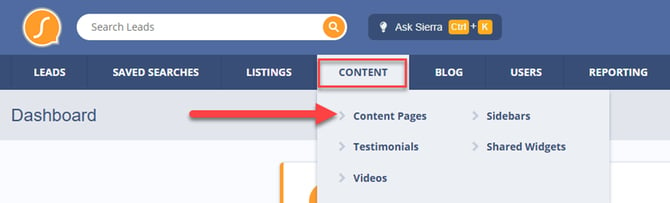
- Select +Create New Page

2. Enter Page Details
- In Page Title, enter the neighborhood name (e.g., Bear Hollow)
- Press Tab to auto-generate the Page Filename
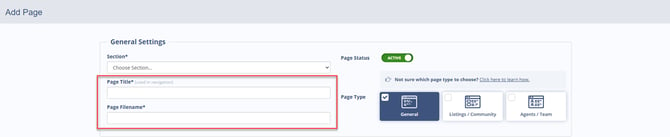
💡 Keep naming consistent (e.g., [Neighborhood Name] Homes for Sale)
3. Select the Correct Section
- Choose the appropriate Section (e.g., Neighborhood Pages)
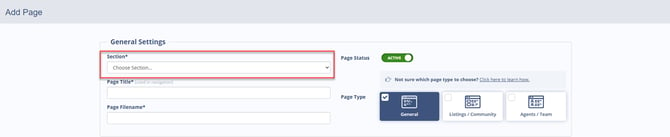
👉 To understand how to use sections see: Maximize Your Site's Navigation: A Practical Guide
4. Configure Page Type & SEO Settings
- Choose between General, Listings/Community, or Agents/Team page type
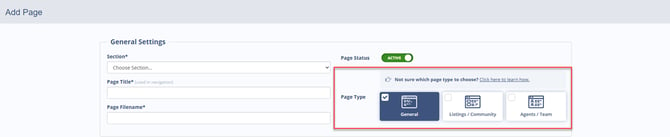
About each Page Type
General: All pages begin as type General. A General page is one which doesn't include an Agent/Team widget or a Listings widget.
Listings / Community: Page Type is changed to "Listings/Community" when one or more "Active Listings Widgets" components are added to the page.
Agents / TeamPage Type is changed to "Agents/Team" when one or more "Agent/Team Members" components are added to the page.
Please Note: In order to keep pages loading as fast as possible, a content page can contain either Active Listings Widgets or Agent/Team Widgets, but not both at the same time.
- Scroll down to Advanced Settings and Meta Tags
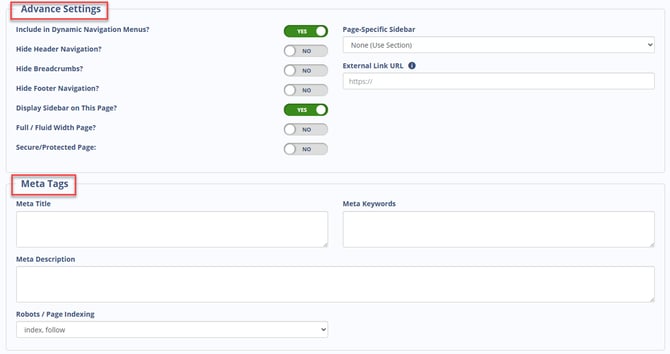
- Set your:
- SEO options
- Meta title and description
- Click Save
👉 For more information on configuring your settings follow: Content Page Settings in Sierra
5. Add Neighborhood Content
Fill out the Main Content Area
- Add a description of the neighborhood, such as:
- Key features or amenities
- Nearby schools, parks, or attractions
- Market insights or lifestyle details
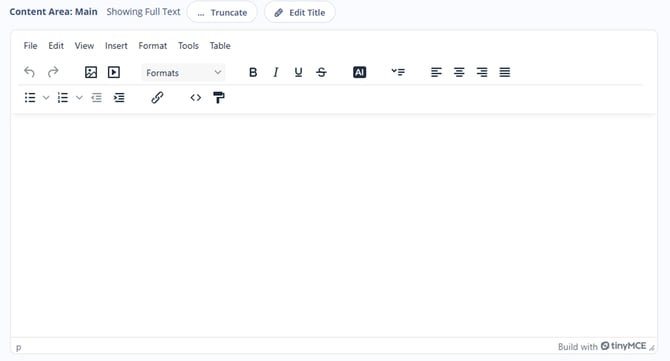
💡 Unique, detailed content improves SEO and user engagement.
Need help drafting content? Read more about Sierra's DraftAI feature
6. Add Listings from Your Saved Search
- Click + Add New Page Component
- Select Listings from Saved Search
- Enter a component title (e.g., Homes for Sale in Bear Hollow)
- Choose your saved search from the dropdown
- Click Submit
This will dynamically display listings that match your saved search criteria.
7. (Optional) Add a Content Label
- Scroll to Section / Labels
- Select an existing label or create a new one
Best Practices
- Write unique, localized descriptions for each neighborhood
- Double-check that your saved search is active and accurate
- Use consistent naming across:
- Page titles
- Components
- Avoid duplicating content across multiple pages
Troubleshooting & Common Questions
Troubleshooting Common Issues
Saved search not appearing in dropdown
- Make sure the saved search has been created and saved before building the page
Listings not displaying on the page
- Verify the saved search criteria
- Confirm there are active listings that match the filters
FAQs
-
Can I create a neighborhood page before creating a saved search?
No. The saved search must exist first so it can be added as a page component. -
Can I reuse a saved search on multiple pages?
Yes, but each page should include unique content to avoid SEO issues. -
What if my section doesn’t appear in the dropdown?
You may need to create it first. See: Maximize Your Site's Navigation: A Practical Guide