
Table of Contents
- Drip Campaigns vs. Action Plans
- Why This Feature Matters
- Step-by-Step Instructions
- Using Drip Campaigns and Assigning to Leads
- Best Practices
- Troubleshooting Common Issues
- FAQs
Drip Campaigns vs. Action Plans
Drip Campaigns are email-only: a series of emails sent on a schedule you control, either from the start date or fixed calendar dates. If you need text messages, calls, or a mix of channels, or if you want leads assigned automatically through Lead Routing, that's Action Plans, not Drip Campaigns.
Not sure which one fits your workflow? See Choosing the Right Communication Tool to Engage and Convert Leads. Many teams use both together, see Pairing Lead Engage with Action Plans and Drip Campaigns for Effective Lead Nurturing.
Why This Feature Matters
Drip email campaigns help you:
- Automate follow-up for new and existing leads.
- Improve email deliverability by sending from your personal address.
- Build consistent communication that converts leads into clients.
The Problem: Many professionals struggle with maintaining consistent communication with leads, which can lead to lost opportunities and underwhelming engagement.
Sierra's Value: By using drip email campaigns, you save time on follow-ups and ensure that your leads receive timely, relevant information that nurtures their interest.
Step-by-Step Instructions
1. Connect Your Email to Sierra
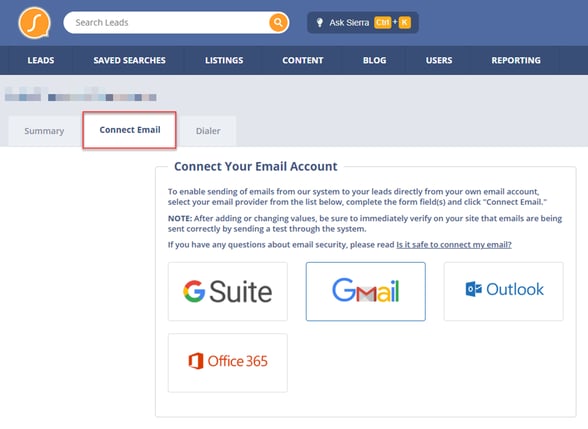
Drip Campaign emails are sent directly from your connected email not a shared server which improves deliverability and inbox placement. To connect your email:
- Log in to your Sierra Admin.
- Click your Profile icon in the top right corner and choose Edit Profile.
- Select the Connect Email tab.
- Choose your email provider or select “Other” to configure manually.
- Confirm the connection was successful.
Every user (agent, lender, or manager) must complete this step for Drip Email access.
2. Create a Drip Campaign
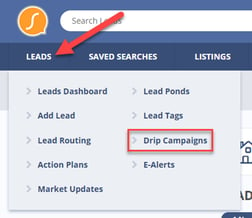
- Go to Leads > Drip Campaigns.
- Click Create New Drip Campaign.
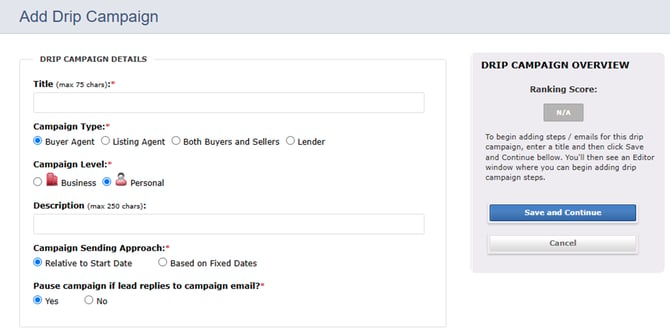
Then configure the following:
- Title: Internal name for team visibility.
- Campaign Type: Choose based on use case.
- Campaign Level:
- Business: Shared with your team.
- Personal: Visible only to you.
Note: You cannot change the level after creation.
-
Description: Optional internal reference.
-
Sending Approach:
- Relative to Start Date (recommended): Starts when a lead is assigned.
- Fixed Dates: Ideal for holidays, anniversaries, etc.
-
Click Save and Continue.
3. Add Emails to Your Campaign
-
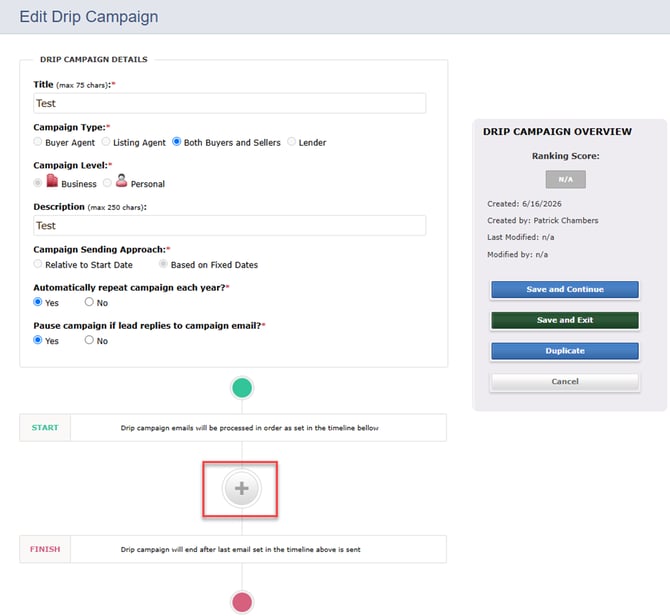
Click the plus icon to add your first email.
-
Emails are sent between 7 AM – 11 PM local time.
-
Set a Delay (e.g., 0 hours, 4 hours, 1 day).
-
Choose or create an Email Template:
- Use Global templates (available to all users).
- Or create a new one from within the campaign builder.
Templates must be built in Gear Icon > Contact Templates. Set template access to "Global" and mark availability for Drip Campaigns. For personalizing email content, see How to Use Merge Fields to Streamline Communication and Drive Results.
4. Add More Emails
- Continue clicking the plus icon to build your email series.
- Adjust delays accordingly to space your drips (e.g., Email 2 = 1-day delay).
5. Save Your Campaign
- Click Save and Exit to return to the Drip Campaign manager.
You can:
- Click View to preview all emails in a campaign.
- Print campaigns for review.
- Only users with permission can edit/delete campaigns.
Using Drip Campaigns and Assigning to Leads
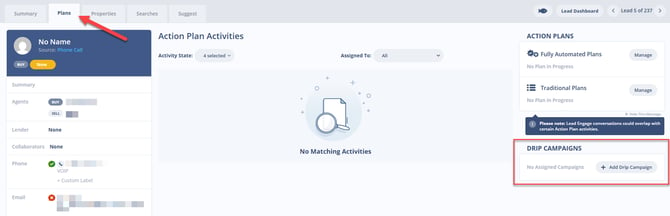
Option 1: Assign One Lead at a Time
- Open the Lead Dashboard.
- Click the lead’s name and select the Plans tab.
- Scroll to the Drip Campaigns section.
- Click Add Campaign and choose from the list.
If you see a “Connect Email” error, revisit Connect Your Email.
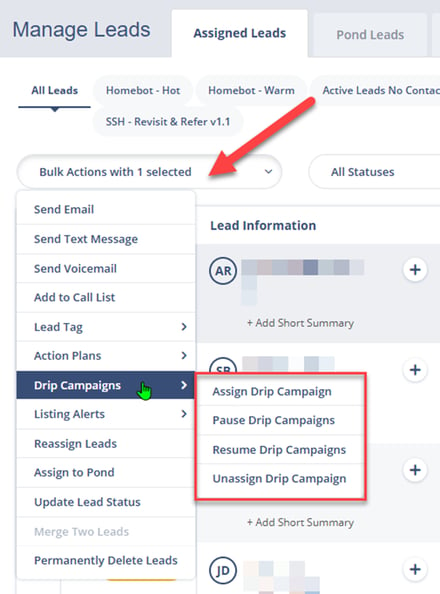
Option 2: Assign Leads in Bulk
- From the Manage Leads page, use checkboxes to select multiple leads.
- Click More > Assign Drip Campaigns to Leads.
- Choose a campaign from the overlay and confirm the assignment.
Best Practices
- Keep subject lines simple and engaging.
- Space out emails based on lead engagement timing.
- Use merge fields for personalization.
- Employ Global Templates for consistent team-wide messaging.
Troubleshooting Common Issues
- Drip campaign won’t send.
Ensure your email is properly connected in your profile. - Can’t see templates in the dropdown.
Make sure the template is marked as available for Drip Campaigns and has Global access.
FAQs
- Can I assign multiple campaigns to the same lead?
No, each lead can only be on one drip campaign at a time. - Do drip campaigns support text messages?
No. Drip campaigns support email only. Texts are available via Action Plans. - What’s the best way to send holiday or birthday campaigns?
Use the Fixed Date option when creating your campaign. - If I edit a campaign after leads are already assigned, does the change apply to them?
Edits only affect emails moving forward. Any email already sent to a lead stays as it was. Emails still upcoming in that lead's sequence will reflect the updated content.