
Table of Contents
- Why This Feature Matters
- Step-by-Step Instructions
- Best Practices
- Troubleshooting & Common Questions
Why This Feature Matters
Keeping a real estate site populated with accurate, useful content takes work. Most agents simply run out of time. When pages sit untouched, search rankings stall out, and prospective clients move on.
Homebuyers rarely search for raw property specs alone anymore. They ask Google complex questions about daily life, or they have conversations with ChatGPT to find out which pockets of town fit their routine. If your site lacks neighborhood detail, modern search tools skip right over you.
Community Page Templates fix this by giving you a simple repeatable framework to publish distinct, area-specific content. You can build out dedicated hubs covering:
-
Dining hotspots, parks, and district amenities
-
School boundary details and commute expectations
-
Micro-market pricing shifts and inventory trends
-
Active properties filtered to that exact location
Regularly updating these community hubs satisfies standard Google algorithms while feeding AI answer engines the exact facts they need to cite your business as a trusted local authority.
Step-by-Step Instructions
Step 1: Create the New Community's Saved Search
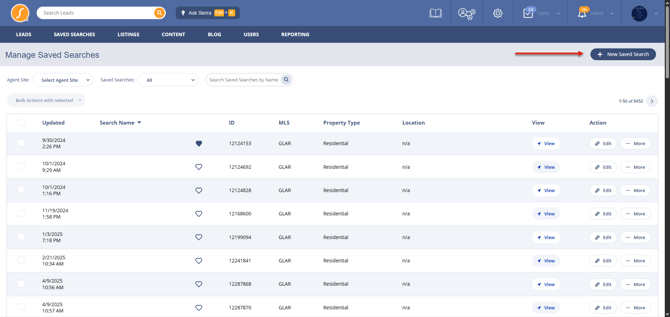
Before creating the page, create a Saved Search for the community so listings can automatically populate on the page. Make sure the search criteria correctly reflects the neighborhood you want to feature.
- Log into the Client Admin Area (CAA)
- Select the Saved Searches tab at the top of the admin panel
- Click +New Saved Search
- Fill out all relevant criteria
- Click Save & Continue
Step 2: Navigate to the Content Pages Section
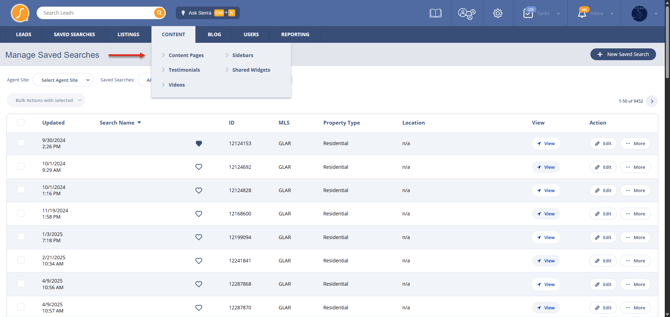
Click the Content tab at the top of the admin panel and select Content Pages from the dropdown menu.
Step 3: Duplicate an Existing Community Page
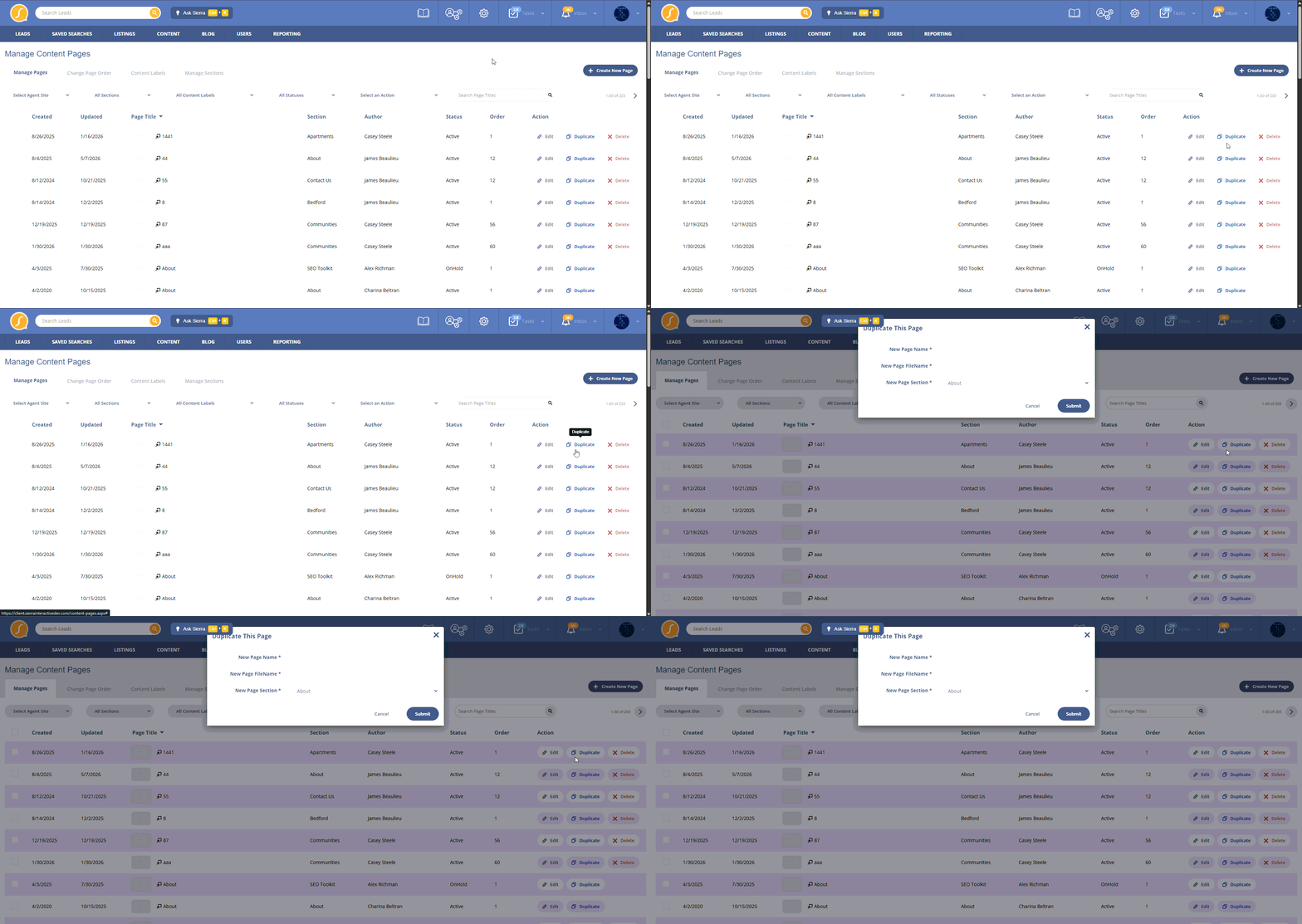
- To the right of each page, find the duplicate icon.

Every Sierra website comes preloaded with a page called Community Name. This is the default template used for duplication in Step 3 above. It's a fast way to get a page live, but treat it as a starting frame, not a finished product.
Search engines and AI answer engines both look for signs that content is genuinely local and not copy-pasted boilerplate. Personalizing the template pays off for:
- SEO: Google's ranking systems favor pages with unique, specific details over generic descriptions repeated across dozens of sites.
- AEO (Answer Engine Optimization): Tools like ChatGPT and Perplexity pull from content that directly answers a question. A generic paragraph about "great schools nearby" gets skipped. A sentence naming the actual elementary school and its walk time gets cited.
- GEO (Generative Engine Optimization): AI models weigh specificity and firsthand detail heavily when deciding which source to trust and surface.
A few quick swaps that make a big difference:
- Instead of "close to shopping and dining," try "an eight minute walk to the Saturday farmers market on Main Street."
- Instead of "great schools in the area," try "zoned for Lincoln Elementary, rated 9/10 on GreatSchools."
- Instead of "growing market," try "median list price up 6% over the last two quarters, with inventory sitting under 30 days on market."
The template gets you moving fast. The personalization is what gets you found.
-
Click the icon, and an overlay will appear.
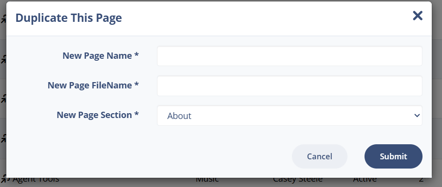
In the overlay window:
-
-
Enter the New Page Name (ex: Brook Valley or Cedar Hills).
-
Press Tab or click outside the field to automatically generate the Page Filename.
-
Select the appropriate Section (typically the Communities section).
-
Click Submit to create the new page.
-
Step 4: Edit the Page Content
-
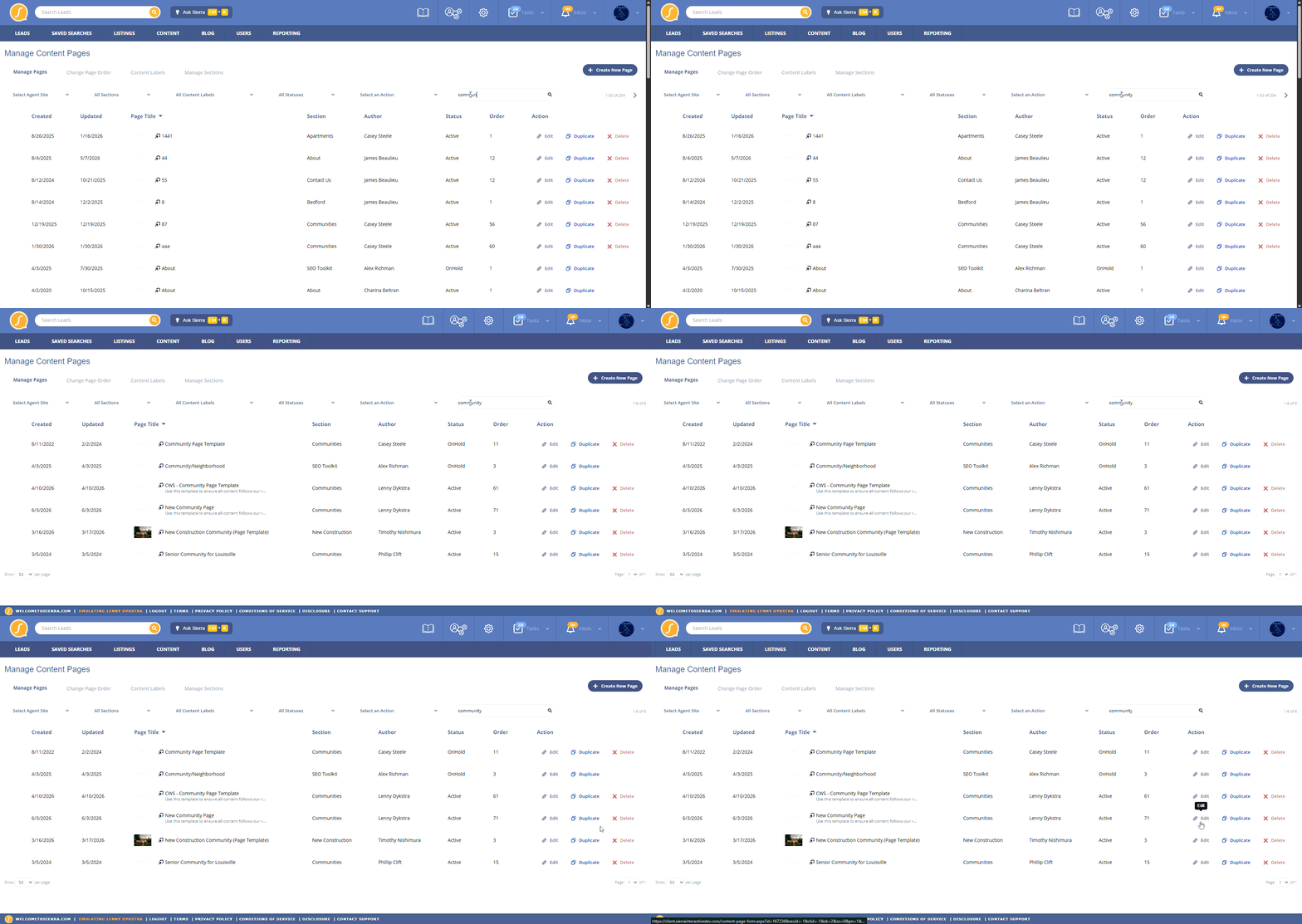
Locate the newly created page in the Content Pages list.
-
Click the Page Title or select Edit under the Actions column.
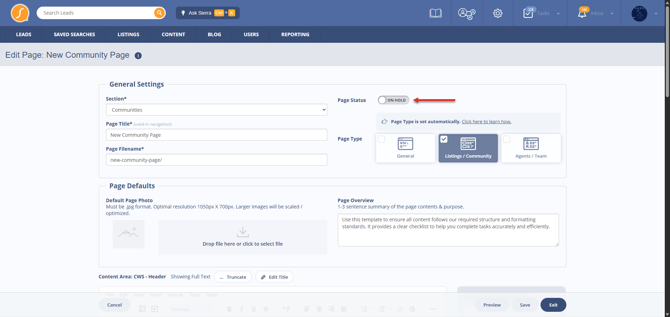
- Set page status to On Hold until you are ready to publish.
-
Update all content to reflect the new community:
-
Replace all instances of the previous community name with the new one.
-
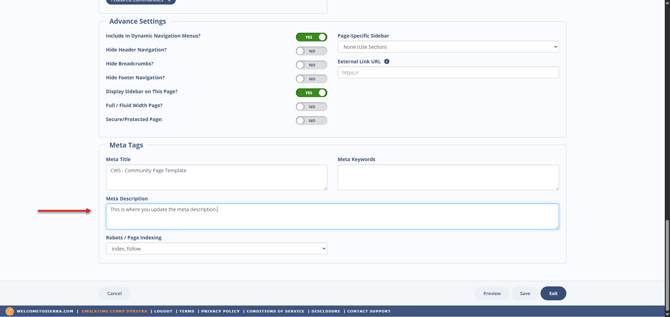
Update Meta Tags and page content in the Content Area: Main section.
-
- Add helpful information such as:
- Neighborhood overview
- Local amenities and attractions
- Schools and parks
- Market insights and trends
- Click Save and Continue after editing.
Don't Forget: Check Your Page Status
If you set this page's status to On Hold (so you could build it out without it going live early), that setting is still in place.
A page stuck On Hold won't show up in search results, won't get indexed by Google, and won't be discoverable by AI answer engines, no matter how well written the content is. All the SEO, AEO, and GEO work you just put in stays invisible until the status changes.
Before you move on to Step 6, confirm you're ready. If you still have edits ahead of you, leave it On Hold for now. Just remember to flip the toggle to Active in Step 7 once the page is complete, or it'll sit finished and unseen.
Step 5: Update the Embedded Listings (Saved Search)
Remove the Old Embedded Search
-
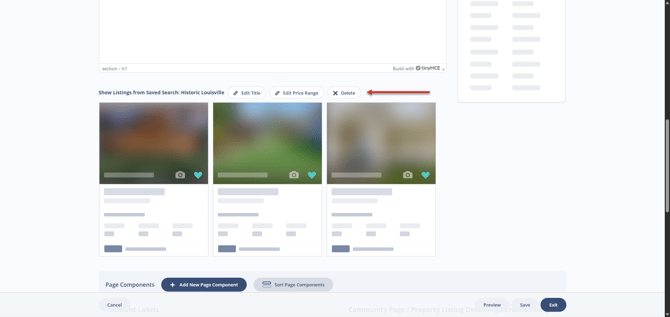
Locate the Embedded Listings component.
-
Hover to the right of the component title.
-
Click Delete to remove the previous community’s saved search.
Add the New Saved Search
-
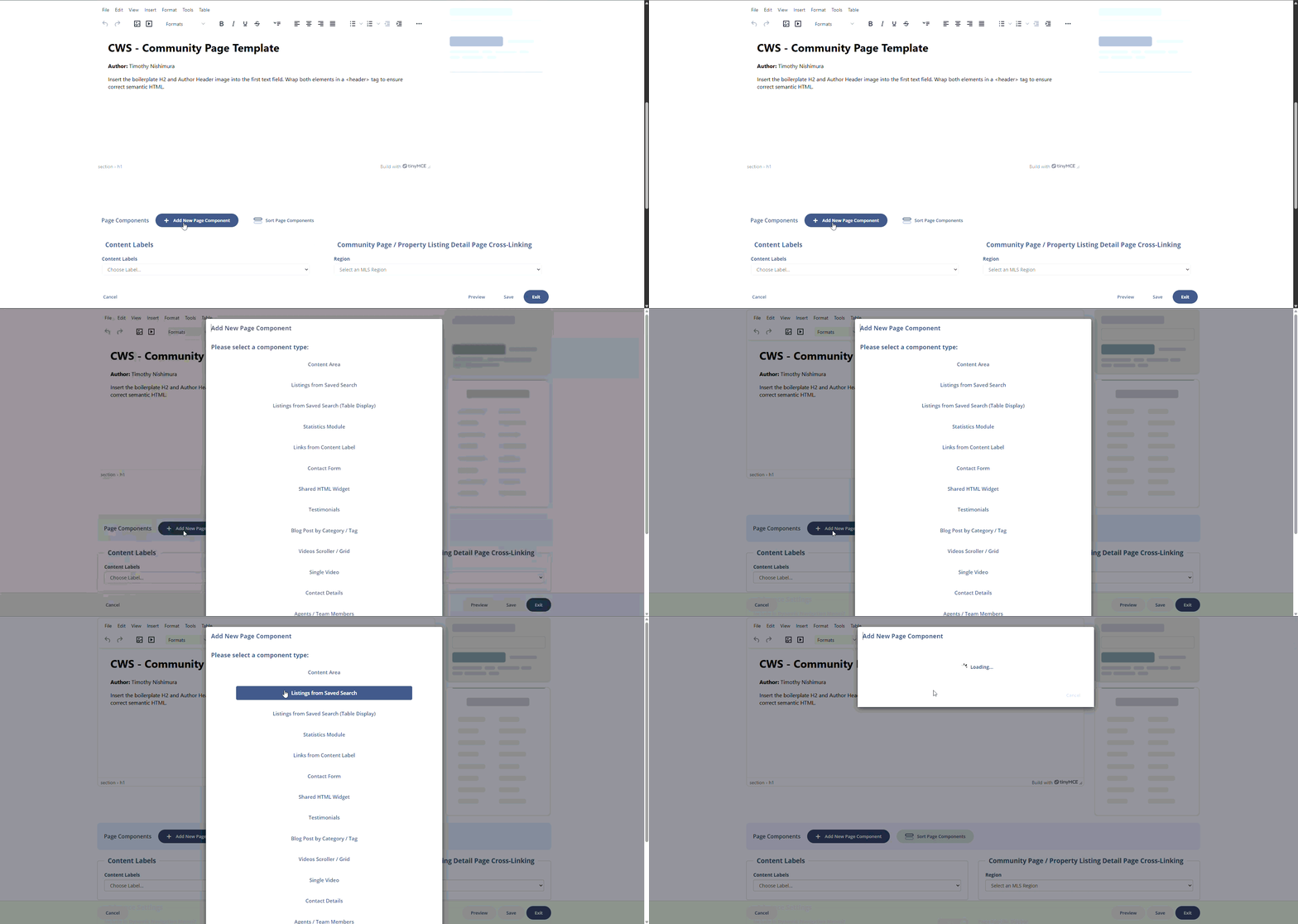
Click + Add New Page Component.
-
Select Listings from Saved Search.
-
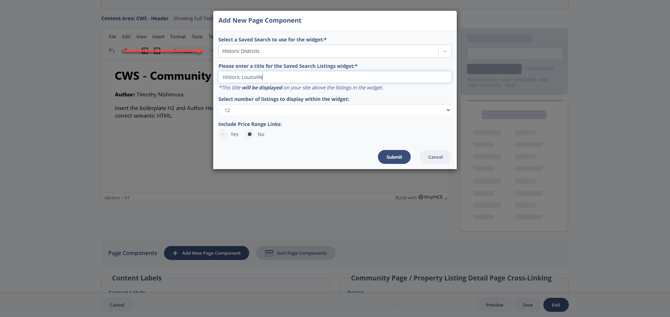
Choose the saved search you created for the community.
-
Add a component title (example: Brook Valley Homes for Sale).
-
Click Submit.
Step 6: Apply Content Labels (Recommended)
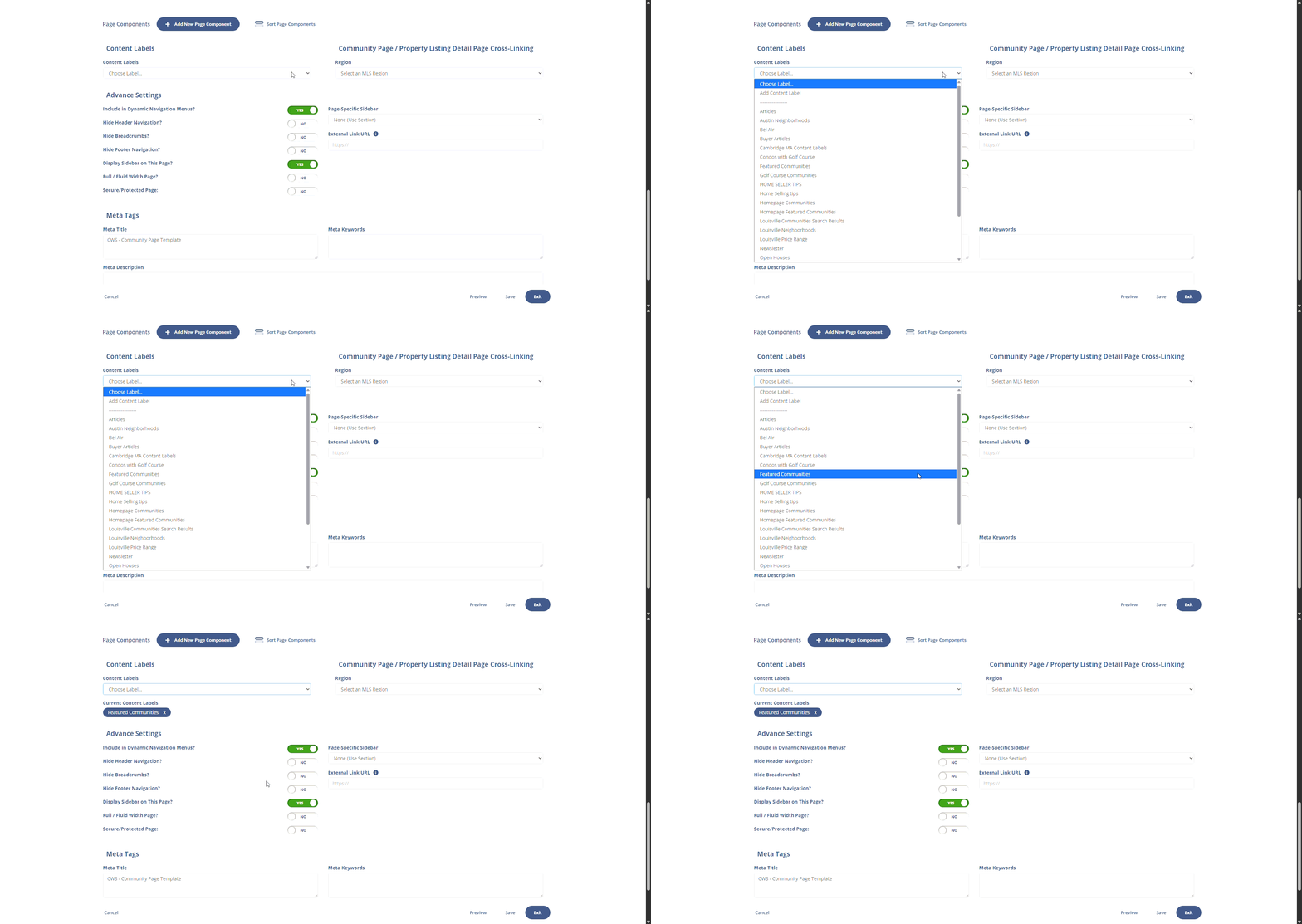
Content Labels help organize and automatically display your Community Pages.
-
Scroll to the Content Labels section.
-
Select Featured Communities (or another appropriate label).
Applying this label ensures the page appears in the Communities page and related site sections.
Reccomended Enhancements
-
Adding a contact form increases the chances of converting visitors into leads. To add this visit: How to Add a Contact Form to Your Content Pages
-
You can also highlight community pages in site sidebars for additional visibility. To get started, visit: Maximize Your Engagement with Custom Sidebars
Step 7: Save and Publish Your Page
-
Click Save to keep editing later.
-
Preview the page to confirm everything displays correctly. When ready set the page status toggle to Active.
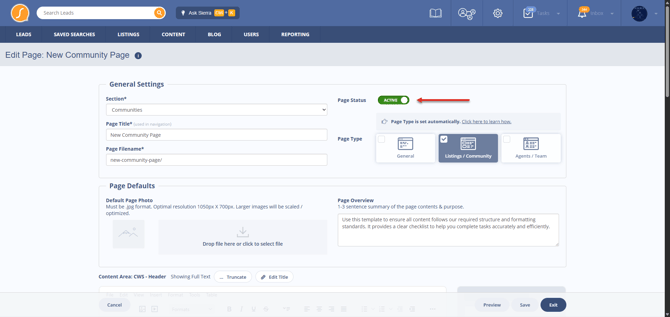
- Click Exit to finalize the page.
-
Share the new Community Page on social media or other marketing channels.
Best Practices
-
Provide fresh information search engines cannot find elsewhere
Google and AI tools evaluate content using a concept called "information gain." In plain English, they reward pages that offer new facts, personal insights, or local knowledge that does not already exist on the web. Avoid copying text from Wikipedia or standard MLS descriptions. Share firsthand details, like park busy hours or neighborhood noise levels, that competitor sites leave out.
-
Tailor saved searches to fit the specific location
Avoid attaching broad citywide listing feeds to a specific neighborhood page. Keep your saved searches tight and focused on that exact boundary. When properties precisely match the text above them, visitors stay on your site longer and search algorithms recognize the page as relevant.
-
Update pages with newly emerging local facts
Static content loses value over time. Revisit your community hubs at least twice a year to drop in recent sales stats, newly opened coffee shops, or upcoming local events. Adding new facts gives search crawlers a clear reason to re-index your site and rank you above older, abandoned pages.
Troubleshooting & Common Questions
Troubleshooting Common Issues
- The embedded saved search isn’t updating with the new community listings.
Double-check that you’ve correctly created and selected the new saved search. Ensure that the search results are set up correctly for the new community. - Page content isn’t reflecting the changes.
Ensure that you’ve properly replaced all instances of the old community’s name and that you’ve saved your changes before exiting.
FAQs
- Can I create multiple pages for the same community?
Yes, provided each page targets a distinct sub-topic (like historic homes versus luxury condos). Covering the same general topic causes content dilution, which weakens your authority and forces your own pages to compete against each other in search results. - Do I need to manually update saved searches when adding new listings?
No, saved searches automatically update with new listings, but ensure your search criteria are broad enough to include all relevant new listings for the community.
Sierra Interactive offers a paid Content Writing Services option for clients.