
Table of Contents
What Are Personal Action Plans?
Personal Action Plans are agent- or lender-owned follow-up sequences that work alongside your account-level plans. Rather than relying entirely on admin-configured workflows, individual users can build and manage their own Traditional or Fully Automated plans giving them a way to personalize outreach while still operating within the team's broader lead routing structure.
Personal plans are only visible to the user who created them and are separate from the account-level plans your Primary Manager or admins maintain.
See also: Traditional Action Plans | Fully Automated Action Plans | Can Personal Action Plans Be Converted to Account-Level Plans?
Before You Begin
Confirm the following before enabling permissions or creating personal plans:
- Sierra Dialer enabled at the account level
- Sierra Dialer connected at the user level
- Email account connected in each user's profile
- Admin access confirmed: Only the Primary Manager can enable permissions in Action Plan Settings
⚠️ Users won't see Lead Routing Settings or personal plan options in their profile until the relevant permissions are turned on. If the option isn't visible, contact your Primary Manager.
Enable Permissions in Action Plan Settings
The Primary Manager controls which personal action plan features are available to users. These settings are account-wide and apply to all non-Primary Manager users.
To access settings:
Navigate to Leads > Action Plans > Action Plan Settings.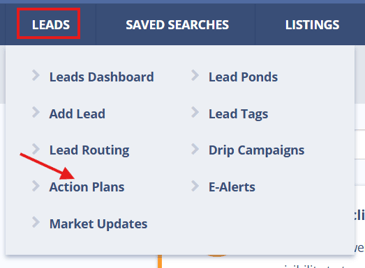

There are three toggles to configure: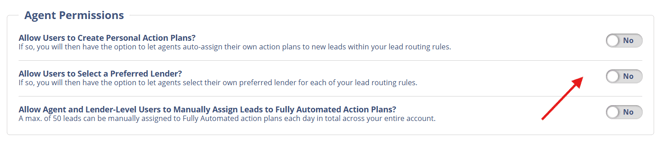
Allow Users to Create Personal Action Plans?
- Enables all non-lender users (Primary Manager, Managers, Agents) to create personal Traditional or Fully Automated Action Plans.
- Adds Lead Routing Settings to each user's profile dropdown.
- Automatically enables the permission for agents and lenders to manually assign leads to Fully Automated Action Plans.
Allow Users to Select a Preferred Lender?
- Allows non-lender users to designate a preferred lender, who is then auto-assigned to leads through their personal Lead Routing Rules.
- Adds Lead Routing Settings to each user's profile dropdown.
Allow Agent and Lender-Level Users to Manually Assign Leads to Fully Automated Action Plans?
- Allows manual assignment of leads to Fully Automated plans — either from an individual lead's detail page or in bulk from the Lead Dashboard.
- Limit: A maximum of 50 manual lead assignments per day applies across the entire account.
⚠️ These toggles are independent. You can enable manual assignment without enabling personal plan creation, and vice versa. Enable only what your team's workflow requires.
Configure Lead Routing Settings (User-Level)
Once the relevant permissions are enabled, each user will see a Lead Routing Settings option in their profile dropdown. This is a per-user setting — separate from account-level Lead Routing Rules — that lets agents and lenders control how plans are applied to leads routed specifically to them.
To access Lead Routing Settings:
- Click your profile icon in the top-right corner of the CAA.
- Select Lead Routing Settings from the dropdown.
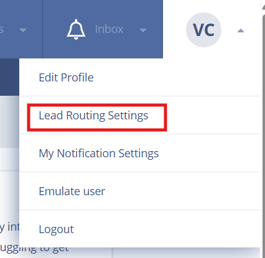
From this screen, users can:
- View all Lead Routing Rules in which they are included as an assignee.
- Edit those rules to specify which personal Action Plan or preferred lender should apply when a lead is routed to them.
- Set a default personal plan or lender for any lead routed to them, then click Save Changes.
⚠️ Changes made in Lead Routing Settings only affect leads routed to that individual user. Account-level routing rules themselves are not editable from this view.
Create a Personal Action Plan
Once the Allow Users to Create Personal Action Plans permission is enabled, users can create their own plans from the Action Plan dashboard.
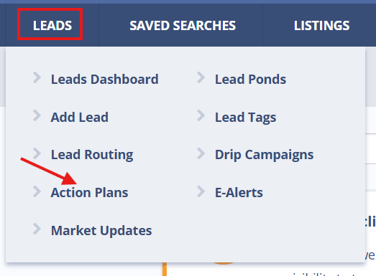
- Navigate to Leads > Action Plans.
- Click + New Action Plan.
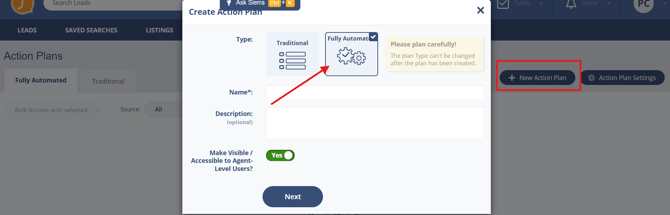
- Select either Traditional or Fully Automated.
- Under the Level option, select My Plans to create a personal plan.
⚠️ The options available at this step vary by user role and permission level:
- Some users will only see Create Plan.
- Users with additional permissions may also see Import Sierra Action Plan, which lets them start from a pre-built template.
- Only admins will see options to create or manage account-level plans.
For full setup steps once a plan type is selected, see:
Best Practices
- Enable only the permissions your team needs. Turning on all three toggles without a clear use case can create workflow confusion. Start with what your team is actively asking for.
- Encourage descriptive plan names. Personal plans are only visible to the creator, but clear names (e.g., "My 14-Day Buyer Follow-Up") make them easier to manage and replicate.
- Use Lead Routing Settings to personalize — not override. Agent-level routing settings complement account-level rules; they shouldn't be used to redirect leads away from the team's agreed routing strategy.
- Remind agents about the 50/day manual assignment cap. If multiple agents are manually assigning leads to Fully Automated plans on the same day, the account-wide limit can be reached unexpectedly.
- Review personal plans periodically. Since personal plans aren't visible to admins by default, encourage agents to audit their own plans every few months for relevance and accuracy.
Troubleshooting Common Issues
- User doesn't see "Lead Routing Settings" in their profile dropdown
Confirm that at least one of the two relevant permissions is enabled in Action Plan Settings (either Allow Users to Create Personal Action Plans or Allow Users to Select a Preferred Lender). If both are off, the option won't appear. - User can't assign a lead to a personal action plan
Confirm the lead is assigned to that user as Buyer Agent, Listing Agent, or Lender. Only leads where the user holds one of those roles can be assigned to their personal plans. - Manual assignment limit reached unexpectedly
The 50-per-day cap is account-wide, not per-user. If multiple team members are manually assigning leads to Fully Automated plans, the limit can be reached before end of day. Coordinate across the team to prioritize assignments. - User sees "Create Plan" but not "Import Sierra Action Plan"
The Import option is only available to users with broader plan management permissions. Agent-level users may only see Create Plan depending on how account permissions are configured.
FAQs
- What's the difference between personal and account-level action plans?
Account-level plans are created and managed by the Primary Manager or admins and can be applied to any lead on the account. Personal plans are created and used by individual users and are only visible to the person who made them. - Can lenders create and use personal action plans?
Lenders can manually assign leads to Fully Automated personal plans if the appropriate permission is enabled. Whether they can create personal plans depends on the account-level toggle settings. - Is there a limit on how many leads can be manually assigned to Fully Automated plans?
Yes — 50 per day, across the entire account. This limit applies regardless of how many users are making assignments. - Can a personal action plan be converted to an account-level plan?
No, there is no direct conversion. See Can Personal Action Plans Be Converted to Account-Level Action Plans? for the recommended workaround.